> ## Documentation Index
> Fetch the complete documentation index at: https://docs.jsonify.com/llms.txt
> Use this file to discover all available pages before exploring further.
# Your First Workflow: Open Site & Extract Data
> Learn by doing! Create a simple workflow to open a website and extract its title.
Let's jump right in and build your first automation with Jsonify! This simple workflow will open a specific webpage and extract its title. This demonstrates the core "Open -> Extract" pattern fundamental to many automations.
## Steps
### 1. Create a New Workflow
* Navigate to your Jsonify **Dashboard**.
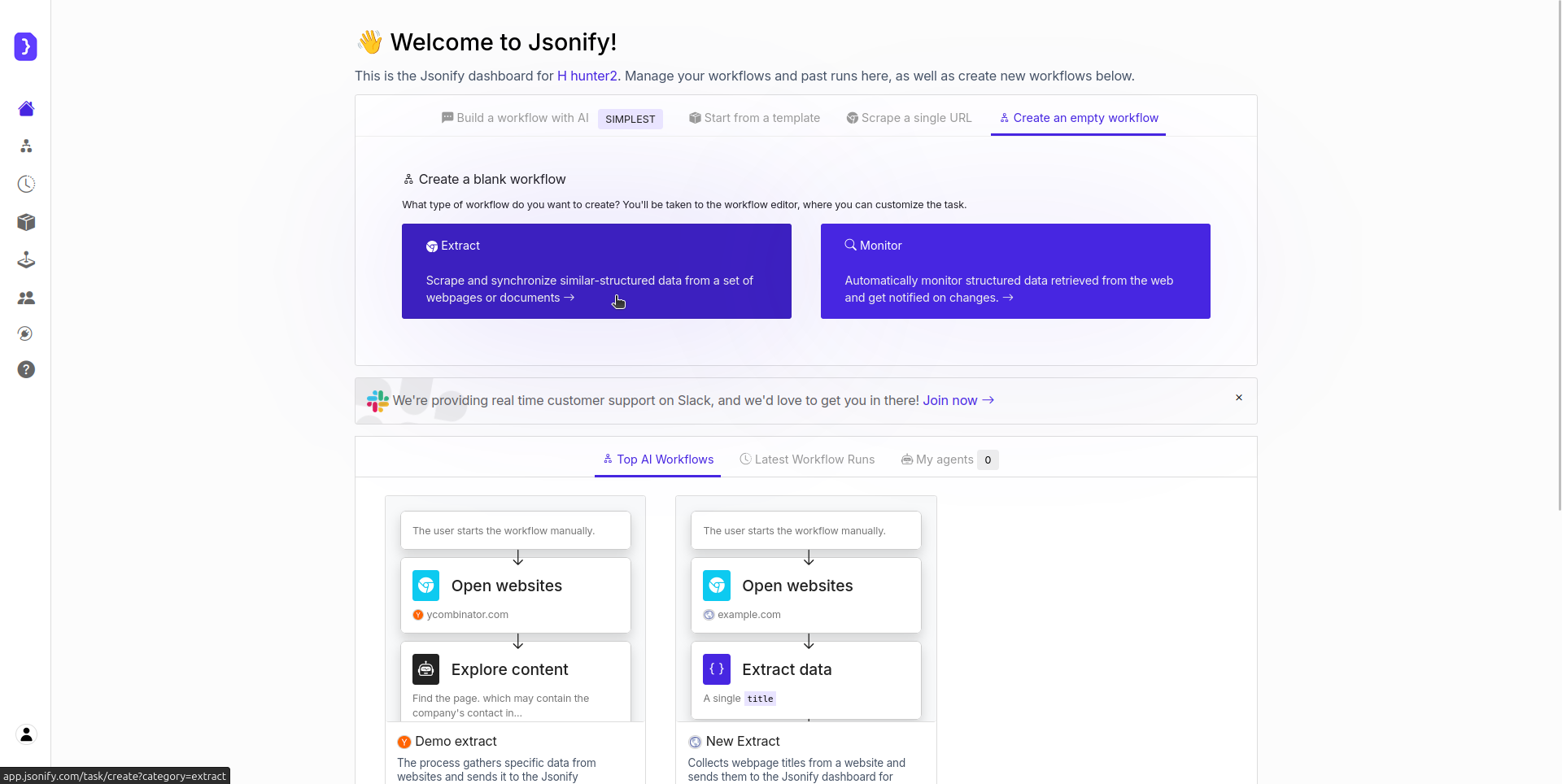
* Click the button sequence to create a new workflow: **Create an empty workflow ➙ Extract**.
* Notice that the created workflow already contains the necessary blocks (`Open Websites` and `Extract Data`) for this first example.
 ### 2. Configure the `Open Websites` Block
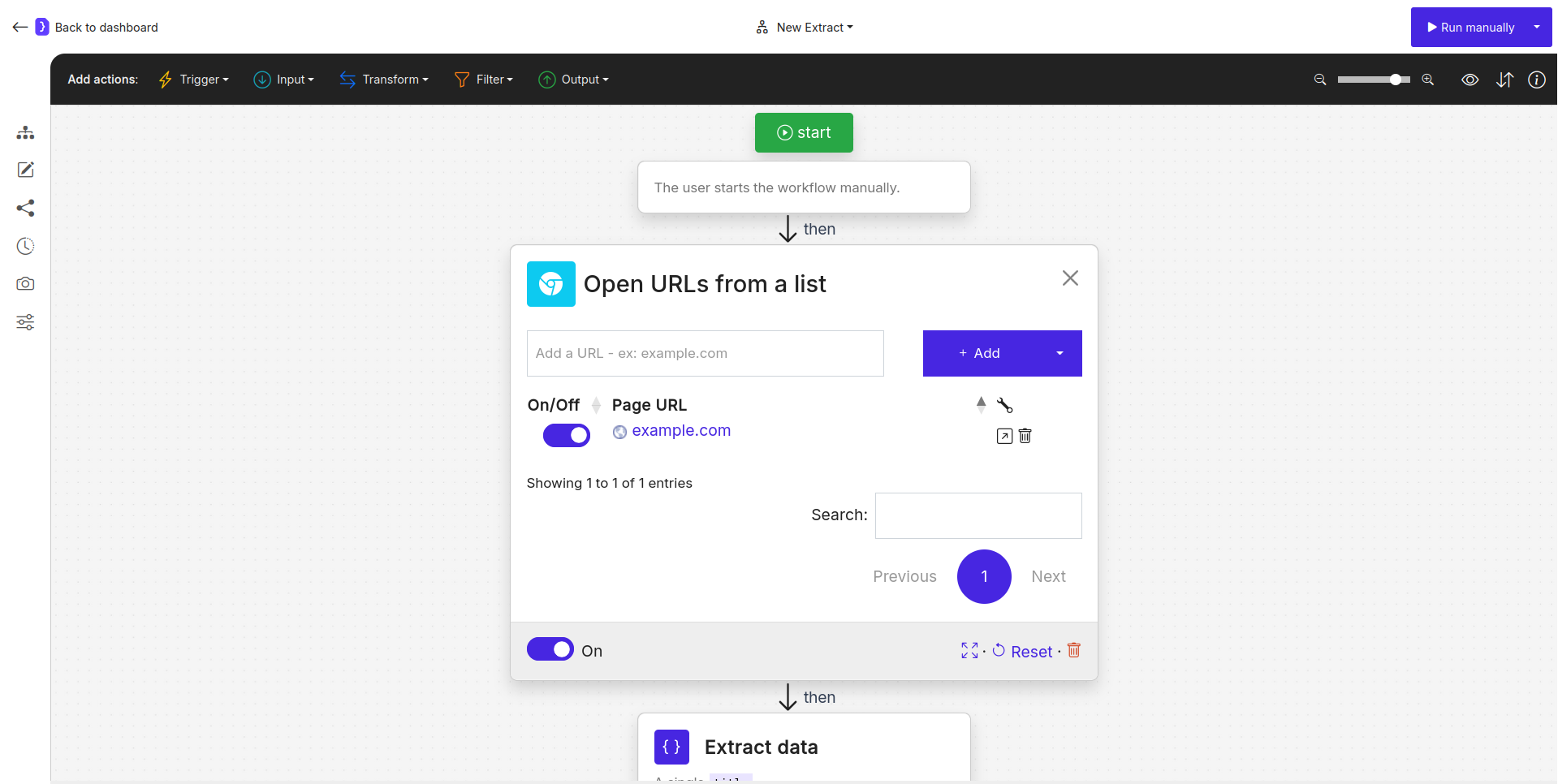
* The starting point for this workflow is the `Open Websites` block, which is already on the canvas.
* Select the `Open Websites` block to configure it.
* In the URL input field, enter the website you want the AI Agent to visit. Let's use a simple, stable example: `https://example.com`
* Ensure the toggle switch next to the URL is **ON**.
### 2. Configure the `Open Websites` Block
* The starting point for this workflow is the `Open Websites` block, which is already on the canvas.
* Select the `Open Websites` block to configure it.
* In the URL input field, enter the website you want the AI Agent to visit. Let's use a simple, stable example: `https://example.com`
* Ensure the toggle switch next to the URL is **ON**.
 ### 3. Configure the `Extract Data` Block
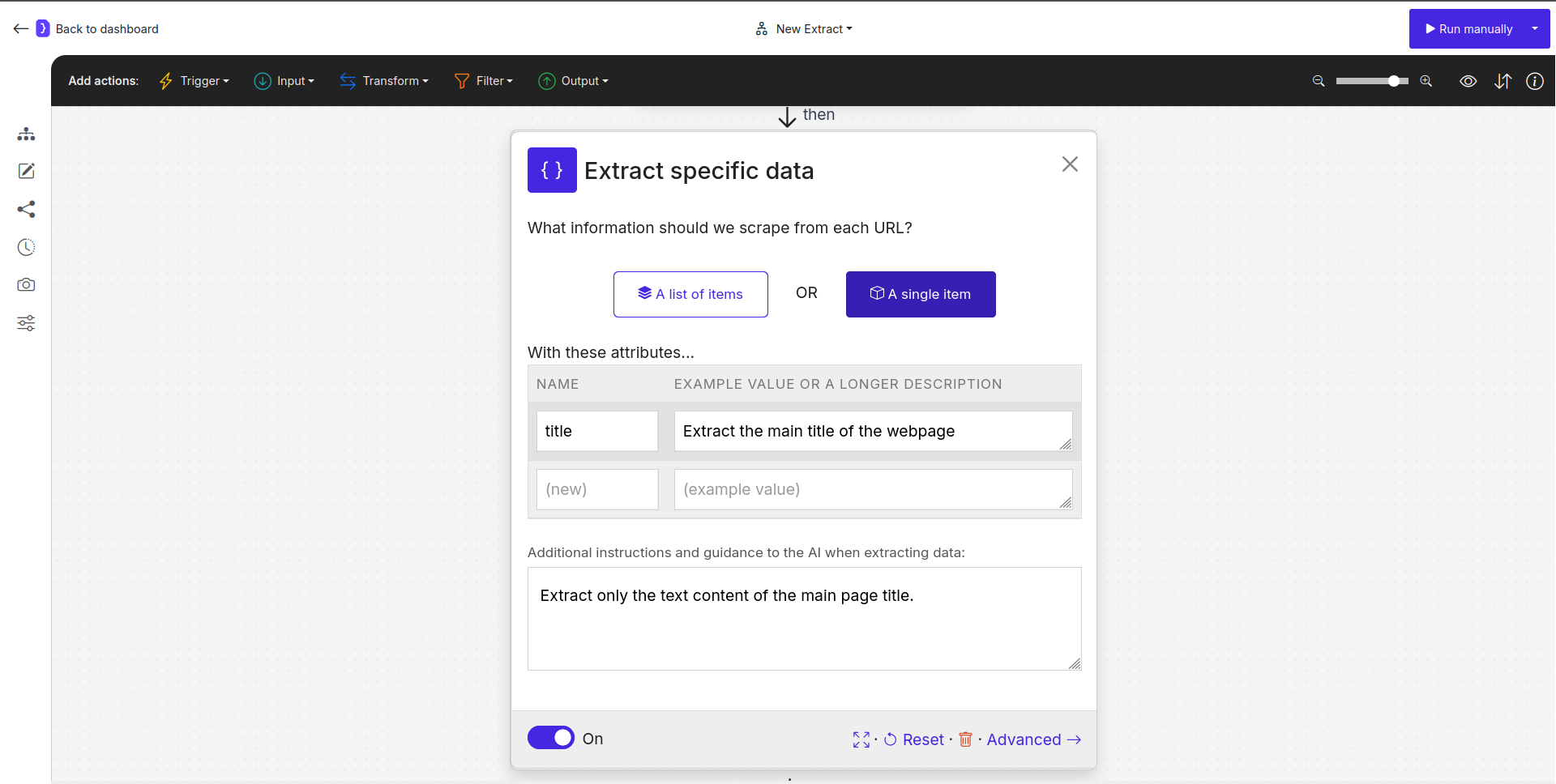
* Next, we need to tell the agent what to extract. The `Extract Data` block is already placed after the `Open Websites` block on the canvas.
* Select the `Extract Data` block to configure it.
* We want a single piece of data (the title) for this example, so ensure **"A single item"** is selected.
* Define the data point you want:
* In the first column, labeled **NAME**, type `title`.
* In the second column, labeled **EXAMPLE VALUE OR A LONGER DESCRIPTION**, describe what the AI should extract: `Extract the main title of the webpage`.
* *(Optional)* You could add further clarification in the "Add additional instructions" field below, like: `Extract only the text content of the main page title.`
### 3. Configure the `Extract Data` Block
* Next, we need to tell the agent what to extract. The `Extract Data` block is already placed after the `Open Websites` block on the canvas.
* Select the `Extract Data` block to configure it.
* We want a single piece of data (the title) for this example, so ensure **"A single item"** is selected.
* Define the data point you want:
* In the first column, labeled **NAME**, type `title`.
* In the second column, labeled **EXAMPLE VALUE OR A LONGER DESCRIPTION**, describe what the AI should extract: `Extract the main title of the webpage`.
* *(Optional)* You could add further clarification in the "Add additional instructions" field below, like: `Extract only the text content of the main page title.`
 ### 4. Run Your Workflow!
* That's it! Your simple workflow is configured and ready to run.
* Find and click the **Run** button (located at the top right of the editor).
* Jsonify will assign an AI Agent to open `example.com` and extract its title based on your instructions.
### 5. Check the Results
* When you manually run the workflow, the editor will automatically redirect you to the page for the current run.
* On this page, results will appear as the AI agent works.
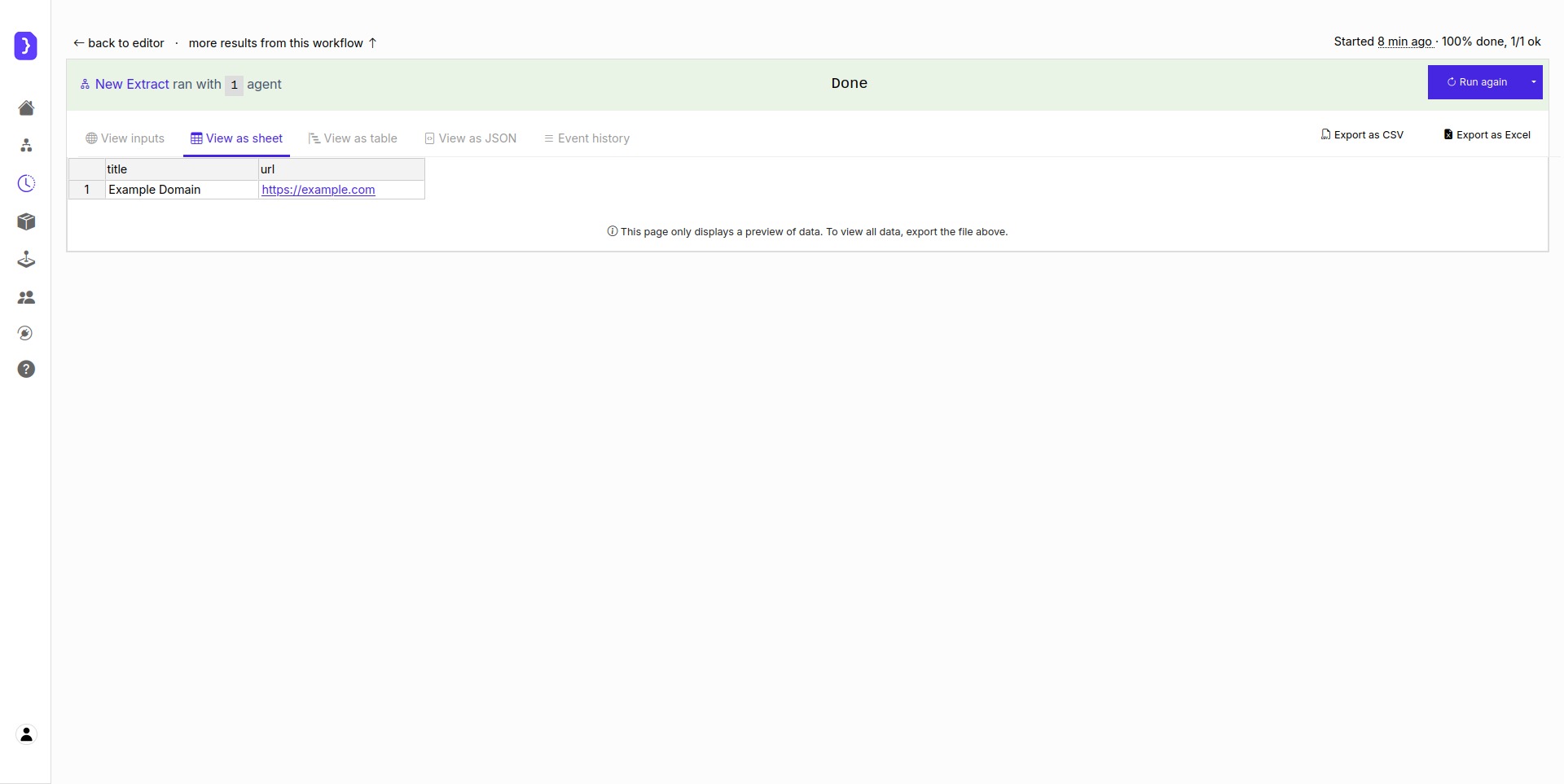
* Once the workflow finishes (it should be very quick for this example), click on **"View as sheet"**. You should see the extracted data presented in a table, with columns named `title` containing the text "Example Domain" and `url` containing the link to the page where the data was extracted..
### 4. Run Your Workflow!
* That's it! Your simple workflow is configured and ready to run.
* Find and click the **Run** button (located at the top right of the editor).
* Jsonify will assign an AI Agent to open `example.com` and extract its title based on your instructions.
### 5. Check the Results
* When you manually run the workflow, the editor will automatically redirect you to the page for the current run.
* On this page, results will appear as the AI agent works.
* Once the workflow finishes (it should be very quick for this example), click on **"View as sheet"**. You should see the extracted data presented in a table, with columns named `title` containing the text "Example Domain" and `url` containing the link to the page where the data was extracted..
 **Congratulations!** You've successfully configured and run your first Jsonify workflow using a template. This demonstrates the basic process of navigating to a page and extracting specific information. You can now build upon this foundation to tackle more complex tasks.