> ## Documentation Index
> Fetch the complete documentation index at: https://docs.jsonify.com/llms.txt
> Use this file to discover all available pages before exploring further.
# Handling Authentication with Cookies
> A step-by-step guide on how to securely store your browser cookies and use them to automate websites that require a login.
## The Challenge: Login Walls
Many websites protect valuable information behind a login wall. When you try to access a page like a personal dashboard or a profile, the site first checks if you are authenticated. This presents a challenge for automation, as the AI agent, by default, is a "guest" and cannot log in on its own.
## The Solution: Securely Stored Session Cookies
When you log into a website, it stores small pieces of data called **cookies** in your browser. These cookies act like a temporary key for your session.
Jsonify allows you to securely store these cookies in a central **Credential Store** and then use them in any workflow. This method is secure, as your cookies are not exposed directly in the workflow, and reusable.
***
## Step 1: Export Cookies as a File
First, you need to export your active login session from your browser into a `cookies.txt` file. We recommend using a simple, open-source browser extension for this.
1. **Install the "Get cookies.txt LOCALLY" Extension.** Install this extension from the [Chrome Web Store](https://chromewebstore.google.com/detail/get-cookiestxt-locally/cclelndahbckbenkjhflpdbgdldlbecc?hl=en).
2. **Log into the Target Website.** In your Chrome browser, navigate to the website you want to automate (e.g., `pinterest.com`) and log in with your credentials.
3. **Export the Cookies File.** Once logged in, click the extension's icon in your toolbar and export `cookies.txt` file by clicking 'Export'.
***
## Step 2: Create a Website Credential Store
Next, you need to upload the exported `cookies.txt` file into Jsonify's secure credential manager.
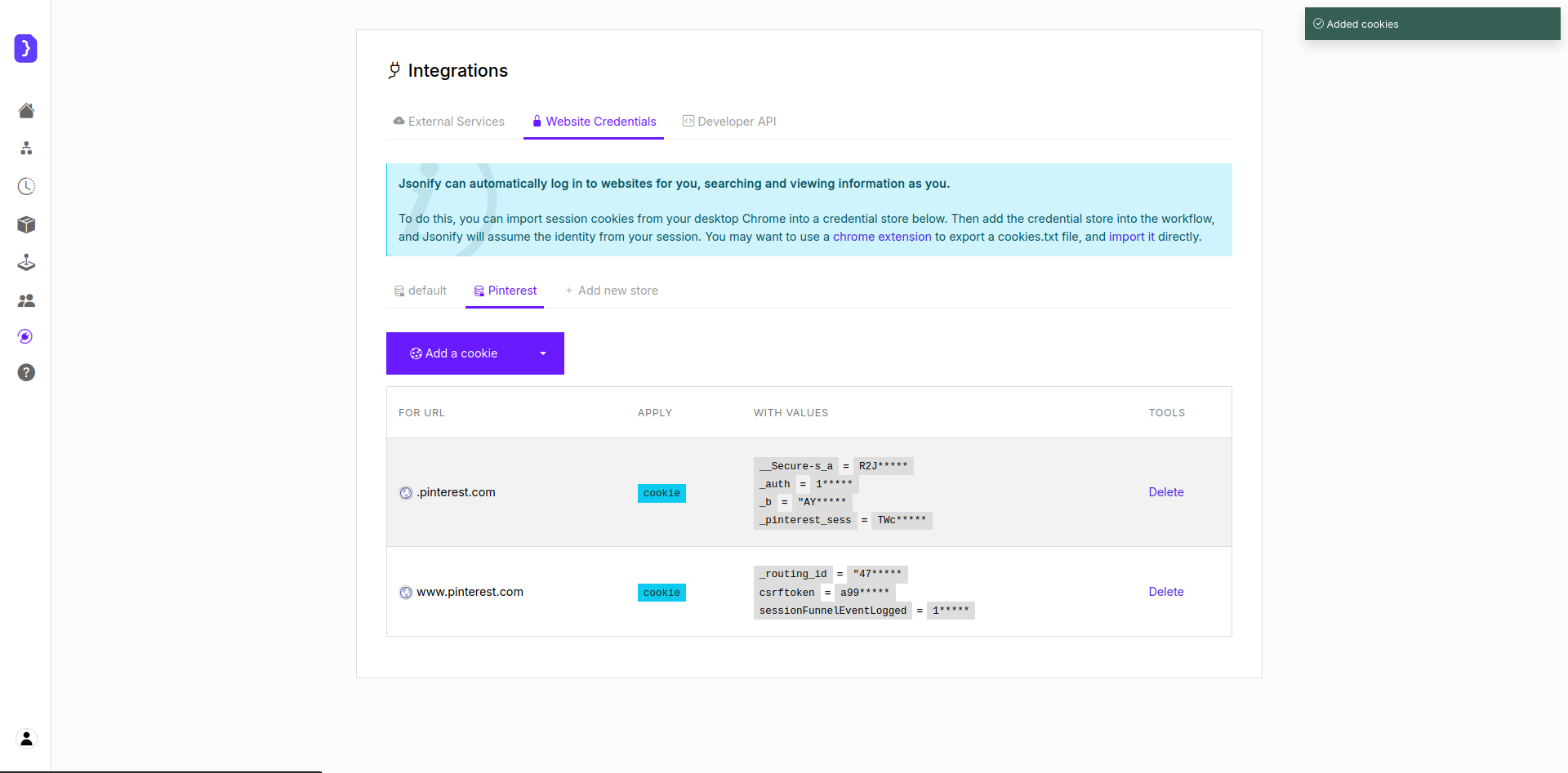
1. **Navigate to Integrations.** From your main dashboard, in the menu on the left, go to the **`Integrations`** section.
2. **Select Website Credentials.** Open the **`Website Credentials`** tab.
3. **Create a New Store.** Click the **`+ Add credentials`** button. A new, untitled credential store will be created.
4. **Import the Cookies File.** Click the dropdown menu (`▼`) on the right side of 'add a cookie' button and select **`Import cookies.txt`**. Upload the file you downloaded in Step 1.
5. **Rename the Store.** Give your credential store a descriptive name, for example, "Pinterest".
 ## Step 3: Use Credentials in a Workflow
Now you can use your stored session in any workflow.
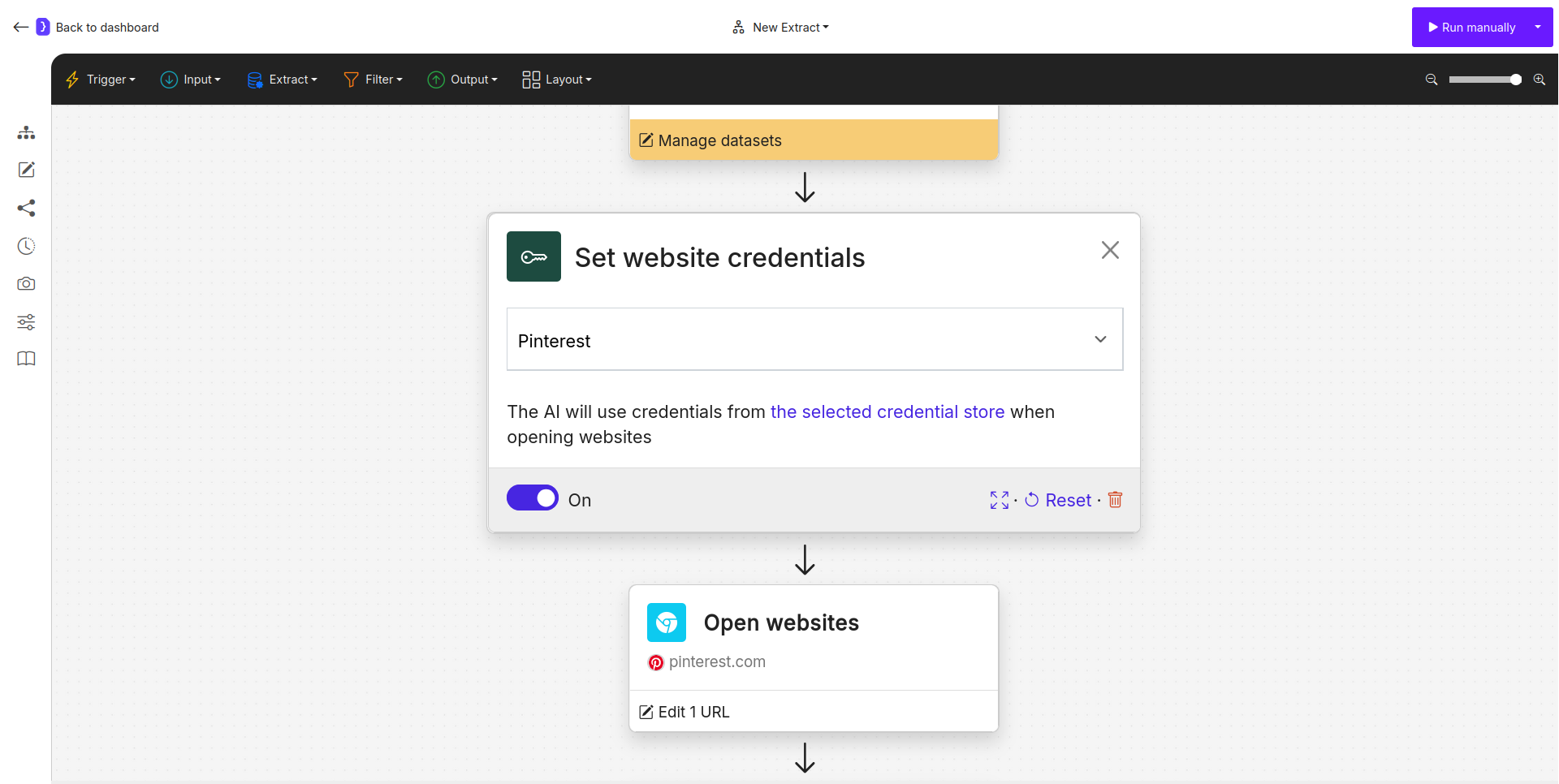
1. **`Add the Use Credentials Block.`** In your workflow editor, add the **`Input ➙ Advanced ➙ Use Credentials`** block. This block should be placed before navigating to the protected page.
2. **Select Your Credential Store.** In the block's settings, click the dropdown menu and select the credential store you created earlier (e.g., "Pinterest").
## Step 3: Use Credentials in a Workflow
Now you can use your stored session in any workflow.
1. **`Add the Use Credentials Block.`** In your workflow editor, add the **`Input ➙ Advanced ➙ Use Credentials`** block. This block should be placed before navigating to the protected page.
2. **Select Your Credential Store.** In the block's settings, click the dropdown menu and select the credential store you created earlier (e.g., "Pinterest").
 ## Full Example: Scraping Your Pinterest Boards
Let's build a workflow that scrapes the names of your personal boards on Pinterest.
1. **`Use Credentials Block:`**
* Start your workflow with this block.
* Select "Pinterest" from the dropdown.
2. **`Open Websites Block:`**
* **URL:** Enter the direct URL to your Pinterest profile's "Saved" tab (e.g., `https://www.pinterest.com/YOUR_USERNAME_HERE/saved/`).
* The agent is now equipped with your login session and will be able to access this page.
3. **`Extract Data Block:`**
* Extract the `board_name` from the list of items on the page.
**Result:** The workflow will successfully run, using your stored credentials to authenticate and access the data behind the login wall.
***
## Best Practices & Key Considerations
* **Security:** Storing cookies as credentials is much more secure than pasting them directly into a workflow. The data is encrypted and managed centrally.
* **Reusability:** You can use the same credential store across multiple workflows. If your cookies expire, you only need to update them in one place.
* **Expiration:** Cookies have a limited lifespan. If your workflow suddenly fails, it likely means your session has expired. Simply re-export a new `cookies.txt` file and re-upload it to the same credential store to update it.
## Full Example: Scraping Your Pinterest Boards
Let's build a workflow that scrapes the names of your personal boards on Pinterest.
1. **`Use Credentials Block:`**
* Start your workflow with this block.
* Select "Pinterest" from the dropdown.
2. **`Open Websites Block:`**
* **URL:** Enter the direct URL to your Pinterest profile's "Saved" tab (e.g., `https://www.pinterest.com/YOUR_USERNAME_HERE/saved/`).
* The agent is now equipped with your login session and will be able to access this page.
3. **`Extract Data Block:`**
* Extract the `board_name` from the list of items on the page.
**Result:** The workflow will successfully run, using your stored credentials to authenticate and access the data behind the login wall.
***
## Best Practices & Key Considerations
* **Security:** Storing cookies as credentials is much more secure than pasting them directly into a workflow. The data is encrypted and managed centrally.
* **Reusability:** You can use the same credential store across multiple workflows. If your cookies expire, you only need to update them in one place.
* **Expiration:** Cookies have a limited lifespan. If your workflow suddenly fails, it likely means your session has expired. Simply re-export a new `cookies.txt` file and re-upload it to the same credential store to update it.