> ## Documentation Index
> Fetch the complete documentation index at: https://docs.jsonify.com/llms.txt
> Use this file to discover all available pages before exploring further.
# Tutorial 1: Extracting Online Reviews (e.g., Trustpilot)
> Learn to collect user reviews from websites like Trustpilot, handling pagination and structuring the data.
This tutorial will guide you through creating a workflow to extract user reviews for specific companies or products from a review website like Trustpilot. We'll cover opening the initial pages, handling multiple pages of reviews (pagination), and defining a schema to capture relevant review details.
## Goal
To collect a list of user reviews for several target entities (e.g., companies on Trustpilot), including details like reviewer name, rating, review text, review date, and review title.
## Key Blocks Used
* `Open Websites`
* `Paginate a list`
* `Extract Data`
## What You'll Learn
* How to provide a list of starting URLs.
* How to configure pagination to navigate through multiple pages of reviews.
* How to define a data schema to extract structured information for each review.
* How to handle lists of items spread across multiple pages.
## Steps
### 1. Create a New Workflow
* Navigate to your Jsonify **Dashboard**.
* Click the button sequence to create a new workflow: **Create an empty workflow ➙ Extract**.
* This will already include `Open Websites` and `Extract Data`. We will add the `Paginate a list` block manually.
### 2. Configure `Open Websites` Block
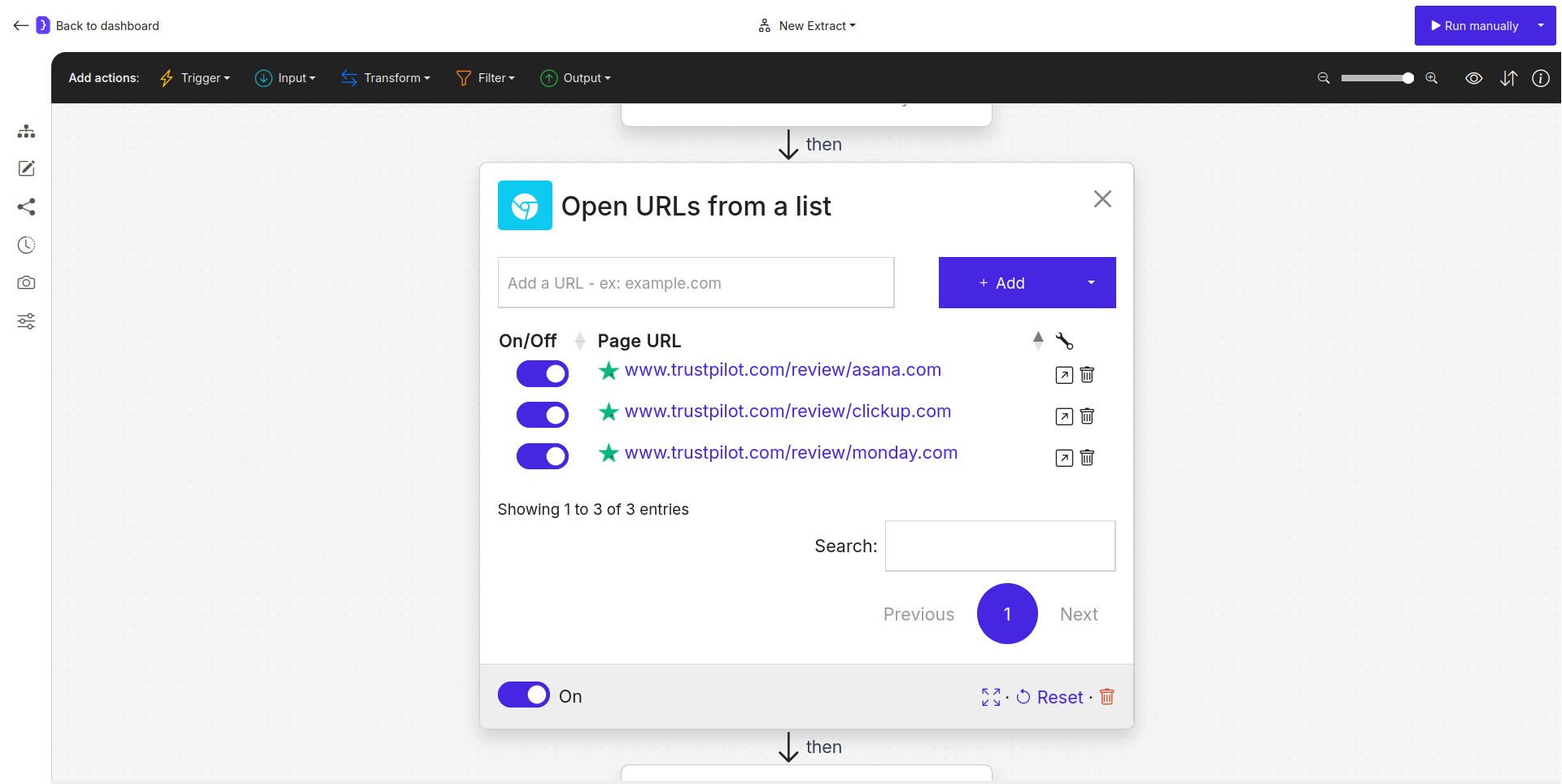
* Select the `Open Websites` block.
* We'll add a few Trustpilot company review pages as examples. In the URL input field, add the following URLs one by one (or use "Add a list of pages" from the dropdown next to the **+ Add** button):
* `https://www.trustpilot.com/review/asana.com`
* `https://www.trustpilot.com/review/monday.com`
* `https://www.trustpilot.com/review/clickup.com`
* Ensure the toggle switch next to each URL is **ON**.
 ### 3. Add and Configure `Paginate a list` Block
* After the `Open Websites` block, we need to tell the agent to go through multiple pages of reviews for *each* company.
* To add a new block, look at the **block categories at the top of the editor**.
* Select the **Transform** category. From the dropdown list of blocks in this category, find and select **`Paginate a list`**.
* Click the `+` icon below the `Open Websites` block to add this block.
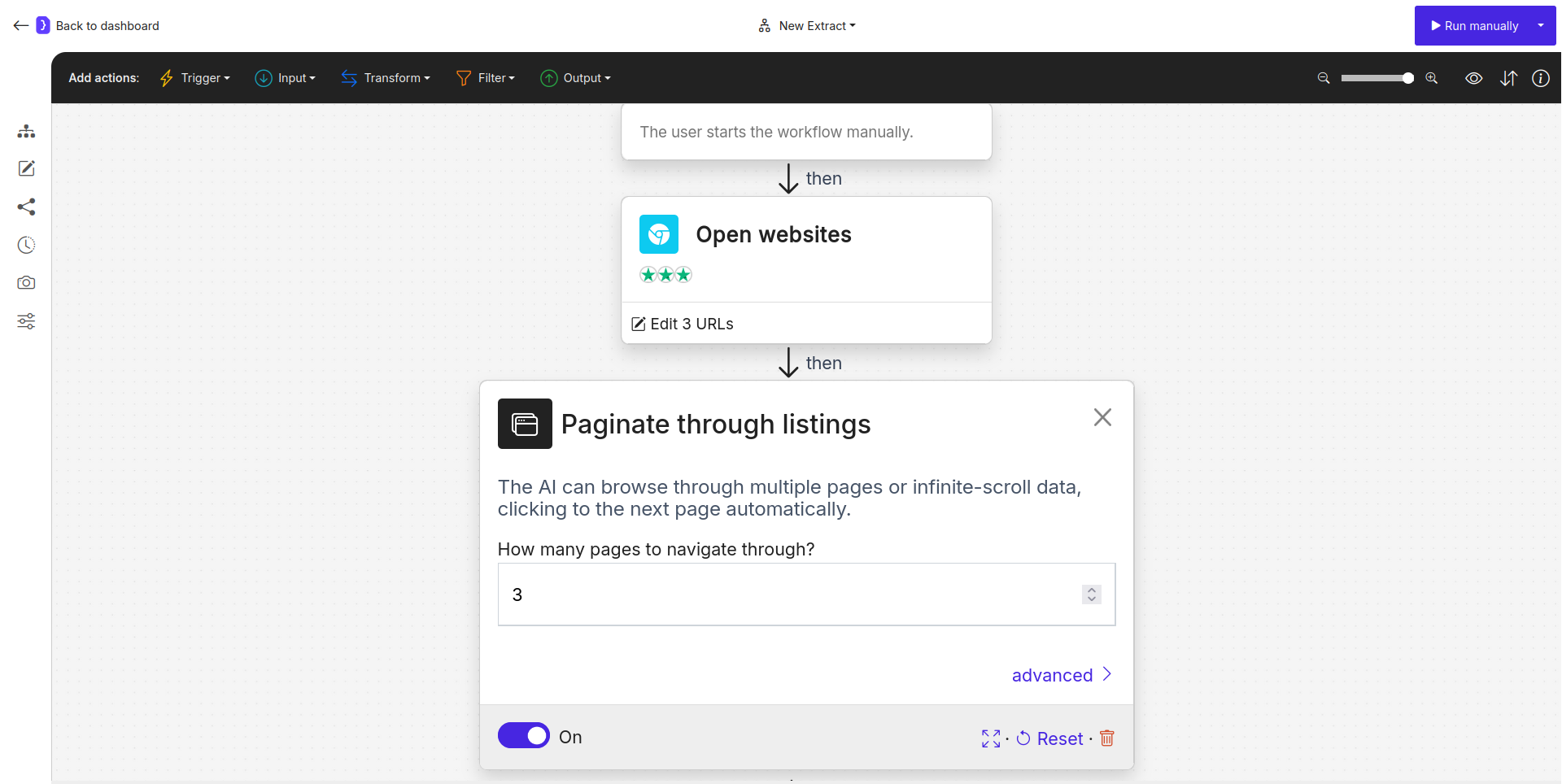
* Select the `Paginate a list` block to configure it.
* **How many pages to navigate through?:** Set this to a reasonable number, for example, `3`. This means for each company, the agent will try to load and process up to 3 pages of reviews (the initial page plus two "Next" page actions). This block handles clicking "Next page" buttons or similar pagination controls.
### 3. Add and Configure `Paginate a list` Block
* After the `Open Websites` block, we need to tell the agent to go through multiple pages of reviews for *each* company.
* To add a new block, look at the **block categories at the top of the editor**.
* Select the **Transform** category. From the dropdown list of blocks in this category, find and select **`Paginate a list`**.
* Click the `+` icon below the `Open Websites` block to add this block.
* Select the `Paginate a list` block to configure it.
* **How many pages to navigate through?:** Set this to a reasonable number, for example, `3`. This means for each company, the agent will try to load and process up to 3 pages of reviews (the initial page plus two "Next" page actions). This block handles clicking "Next page" buttons or similar pagination controls.
 ### 4. Configure `Extract Data` Block
* This block will run for each page loaded by the `Open Websites` and processed by the `Paginate a list` blocks.
* Select the `Extract Data` block (it should be after `Paginate a list`).
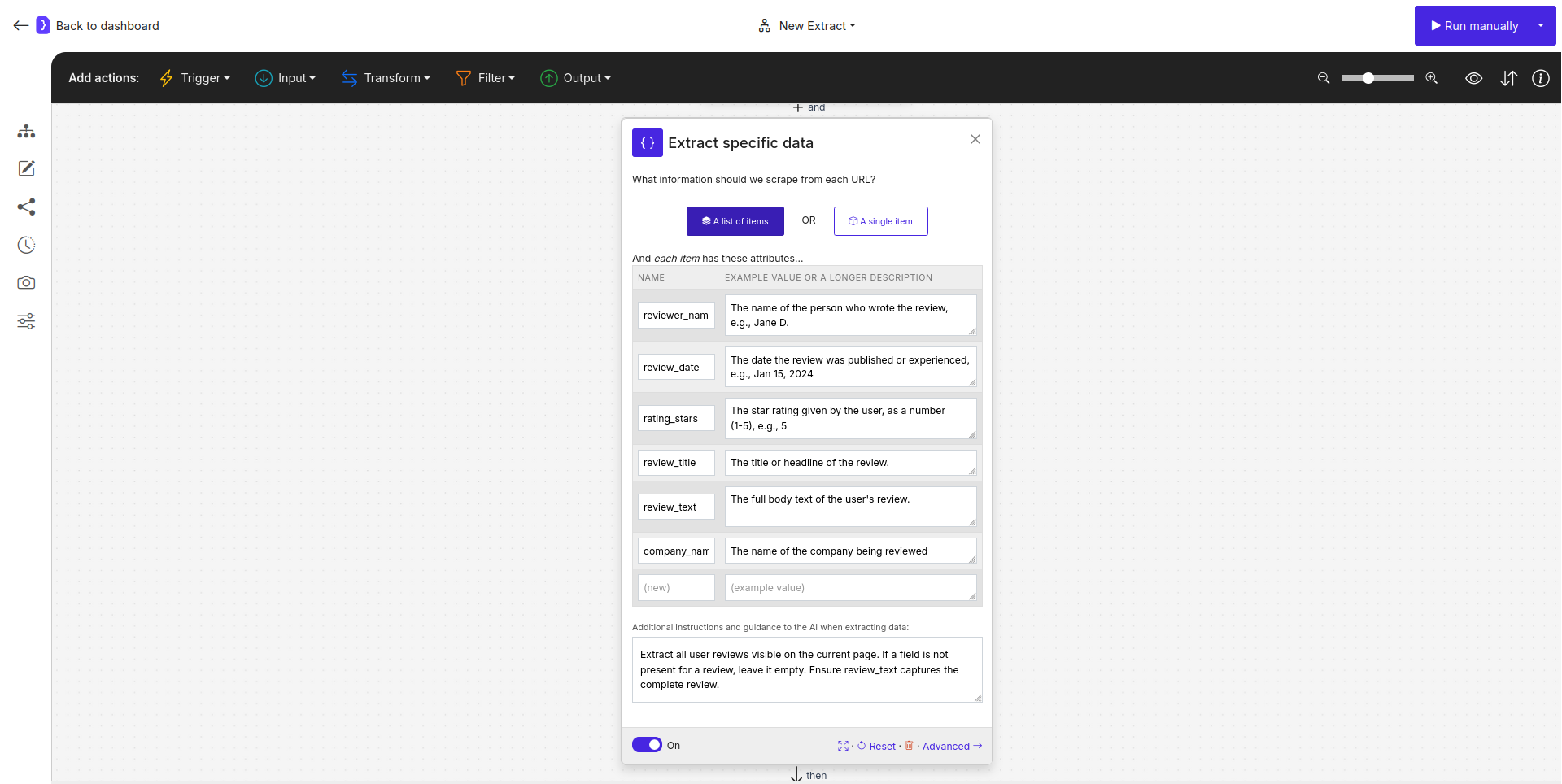
* **What information should we scrape from each URL?:** Select **`A list of items`**, as each page will contain multiple reviews.
* Define the attributes (fields) for each review:
| NAME | EXAMPLE VALUE OR A LONGER DESCRIPTION |
| --------------- | ----------------------------------------------------------------------------------------------------- |
| `reviewer_name` | `The name of the person who wrote the review, e.g., Jane D.` |
| `review_date` | `The date the review was published or experienced, e.g., Jan 15, 2024` |
| `rating_stars` | `The star rating given by the user, as a number (1-5), e.g., 5` |
| `review_title` | `The title or headline of the review.` |
| `review_text` | `The full body text of the user's review.` |
| `company_name` | `The name of the company being reviewed (extract from page or use variable if available from input).` |
* **Add additional instructions and guidance...:**
* `Extract all user reviews visible on the current page. If a field is not present for a review, leave it empty. Ensure review_text captures the complete review.`
### 4. Configure `Extract Data` Block
* This block will run for each page loaded by the `Open Websites` and processed by the `Paginate a list` blocks.
* Select the `Extract Data` block (it should be after `Paginate a list`).
* **What information should we scrape from each URL?:** Select **`A list of items`**, as each page will contain multiple reviews.
* Define the attributes (fields) for each review:
| NAME | EXAMPLE VALUE OR A LONGER DESCRIPTION |
| --------------- | ----------------------------------------------------------------------------------------------------- |
| `reviewer_name` | `The name of the person who wrote the review, e.g., Jane D.` |
| `review_date` | `The date the review was published or experienced, e.g., Jan 15, 2024` |
| `rating_stars` | `The star rating given by the user, as a number (1-5), e.g., 5` |
| `review_title` | `The title or headline of the review.` |
| `review_text` | `The full body text of the user's review.` |
| `company_name` | `The name of the company being reviewed (extract from page or use variable if available from input).` |
* **Add additional instructions and guidance...:**
* `Extract all user reviews visible on the current page. If a field is not present for a review, leave it empty. Ensure review_text captures the complete review.`
 ### 5. Run Your Workflow
* Click the **Run manually** button (at the top right).
* The agent will now:
1. Open the first company's Trustpilot page.
2. The `Paginate a list` block will take over, loading up to 3 pages of reviews for that company.
3. For each of these pages, the `Extract Data` block will scrape all the reviews according to your schema.
4. This process will repeat for the second company, and then the third.
### 6. Check the Results
* As the workflow runs, you'll be redirected to the current run's page, where results will appear.
* Once completed, click on **"View as sheet"**.
* You should see a table containing all the extracted reviews from the specified pages for all three companies. Each row will represent a single review with the fields you defined.
**Congratulations!** You've built a workflow to extract paginated online reviews. You can adapt this pattern for many other review sites or any website that lists items across multiple pages.
### 5. Run Your Workflow
* Click the **Run manually** button (at the top right).
* The agent will now:
1. Open the first company's Trustpilot page.
2. The `Paginate a list` block will take over, loading up to 3 pages of reviews for that company.
3. For each of these pages, the `Extract Data` block will scrape all the reviews according to your schema.
4. This process will repeat for the second company, and then the third.
### 6. Check the Results
* As the workflow runs, you'll be redirected to the current run's page, where results will appear.
* Once completed, click on **"View as sheet"**.
* You should see a table containing all the extracted reviews from the specified pages for all three companies. Each row will represent a single review with the fields you defined.
**Congratulations!** You've built a workflow to extract paginated online reviews. You can adapt this pattern for many other review sites or any website that lists items across multiple pages.