> ## Documentation Index
> Fetch the complete documentation index at: https://docs.jsonify.com/llms.txt
> Use this file to discover all available pages before exploring further.
# Tutorial 4: Finding Speaker/Attendee LinkedIn Profiles
> Learn to build a multi-step workflow to find LinkedIn profiles for a list of names, combining search, navigation, and data extraction.
This advanced tutorial demonstrates how to create a more complex workflow. Starting with a list of names (e.g., event speakers or attendees), we'll build a process to search for their LinkedIn profiles, navigate to the correct profile, and extract some basic information.
## Goal
For a given list of people's names:
1. Extract the names (if they are on a webpage or from a list of pages).
2. For each name, search Google for their LinkedIn profile.
3. Identify the most relevant LinkedIn profile URL from the search results.
4. Navigate to that LinkedIn profile.
5. Extract key information from the profile (e.g., current job title, company).
## Key Blocks Used
* `Open Websites`
* `Extract Data`
* `Open datasets` (if starting with a predefined list of names not on a webpage)
* `Google Search`
* `Find Links`
* `Follow Links`
## What You'll Learn
* How to chain multiple actions and data sources.
* Using variables (like names) to drive dynamic searches.
* Strategies for identifying correct links from search results.
* Building a more robust, multi-stage data collection workflow.
* Handling paginated lists of source names.
## Scenario A: Names are on a Multi-Page Web List (e.g., Conference Speaker Pages)
### Steps
#### 1. Create a New Workflow
* Navigate to your Jsonify **Dashboard**.
* Click: **Create an empty workflow ➙ Extract**.
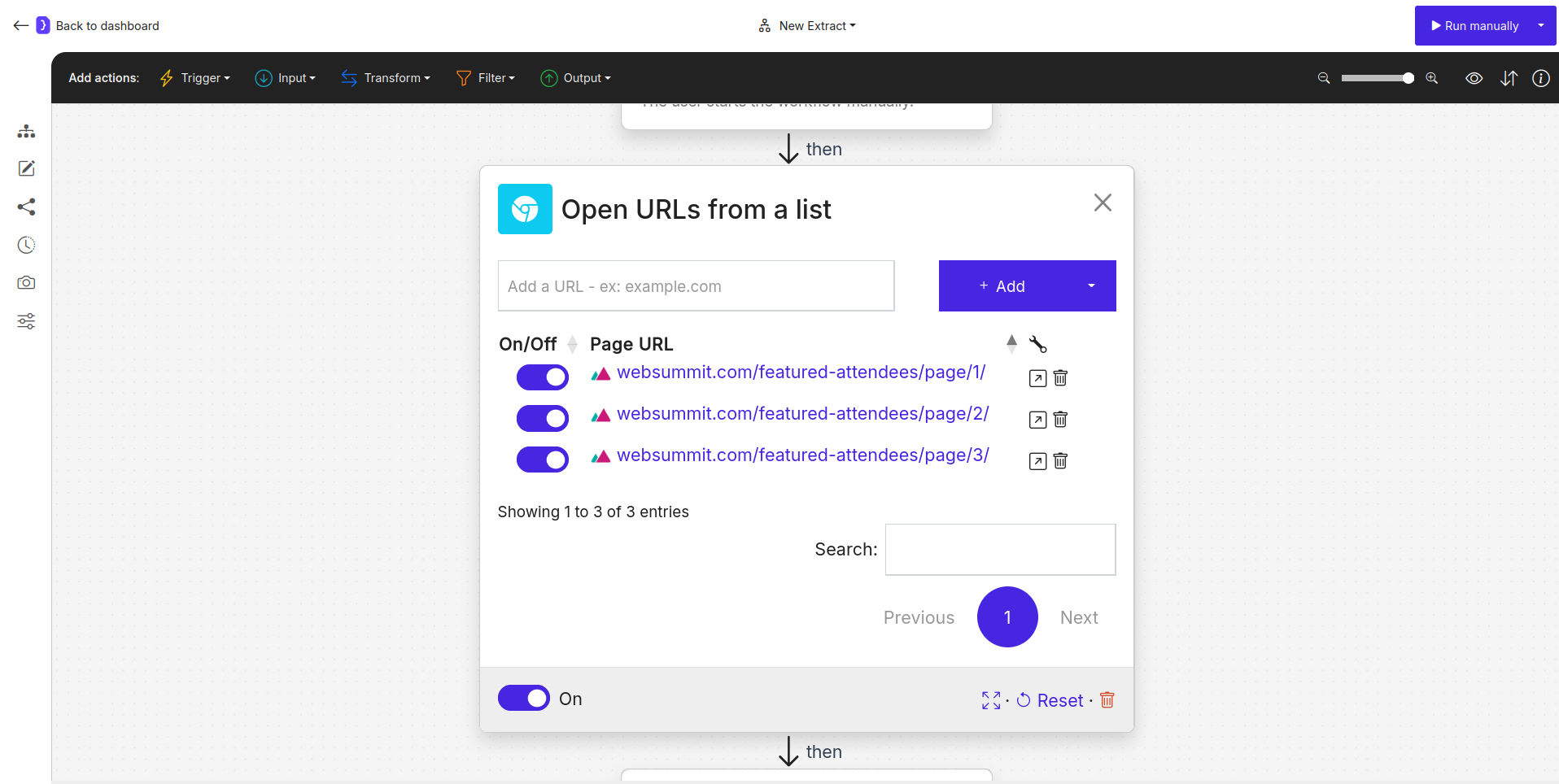
#### 2. Configure `Open Websites` Block
* Select the `Open Websites` block.
* We'll use the Websummit featured attendees list as an example, which spans multiple pages.
* Click the dropdown next to the **+ Add** button and select **Add a numbered range of URLs**.
* **Enter the URL pattern...:** `https://websummit.com/featured-attendees/page/{{page}}/`
* **And enter the page ranges to add here:** Start `1`, End `3` (for this example, to process 3 pages of the Websummit list).
* Ensure the toggle is **ON** for the generated URL pattern.
 #### 3. Configure First `Extract Data` Block (To Get Names)
* This block will extract names from *each* page opened by the `Open Websites` block.
* Select the `Extract Data` block (it's already in the template after `Open Websites`).
* **What information...?:** `A list of items` (as each page lists multiple attendees).
* **Attributes:**
| NAME | EXAMPLE VALUE OR A LONGER DESCRIPTION |
| ----------- | ------------------------------------------------- |
| `full_name` | `The full name of the attendee, e.g., Jane Smith` |
* **Additional instructions...:** `Extract all attendee (conference speaker) full names listed on the current page. Ignore everything before "book tickets"; target attendees come after that text.`
#### 3. Configure First `Extract Data` Block (To Get Names)
* This block will extract names from *each* page opened by the `Open Websites` block.
* Select the `Extract Data` block (it's already in the template after `Open Websites`).
* **What information...?:** `A list of items` (as each page lists multiple attendees).
* **Attributes:**
| NAME | EXAMPLE VALUE OR A LONGER DESCRIPTION |
| ----------- | ------------------------------------------------- |
| `full_name` | `The full name of the attendee, e.g., Jane Smith` |
* **Additional instructions...:** `Extract all attendee (conference speaker) full names listed on the current page. Ignore everything before "book tickets"; target attendees come after that text.`
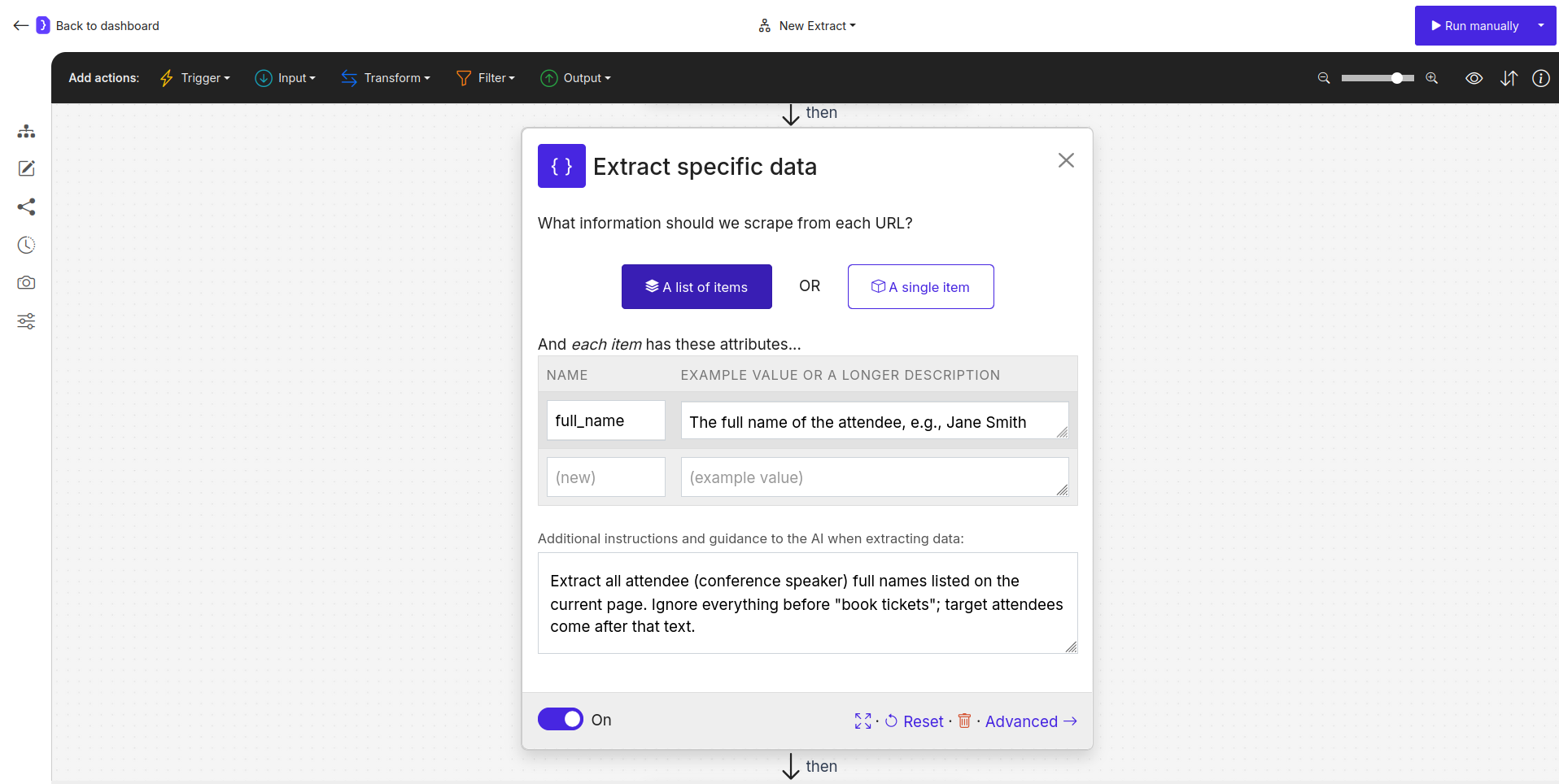 *`The output full_name from this block will be processed iteratively for subsequent steps for each name found across all pages.`*
#### 4. Add and Configure `Google Search` Block
* Now, for each `full_name` extracted, we search for their LinkedIn profile.
* To add a new block:
1. Look at the **block categories at the top of the editor** (Trigger, Input, Transform, Filter, Output).
2. Select the **Ibpur** category.
3. From the dropdown list of blocks that appears, select **`Google Search`**.
4. Now, click the **+** icon on the canvas at the point where you want to add the block (i.e., after the first `Extract Data` block). The `Google Search` block will be added and connected.
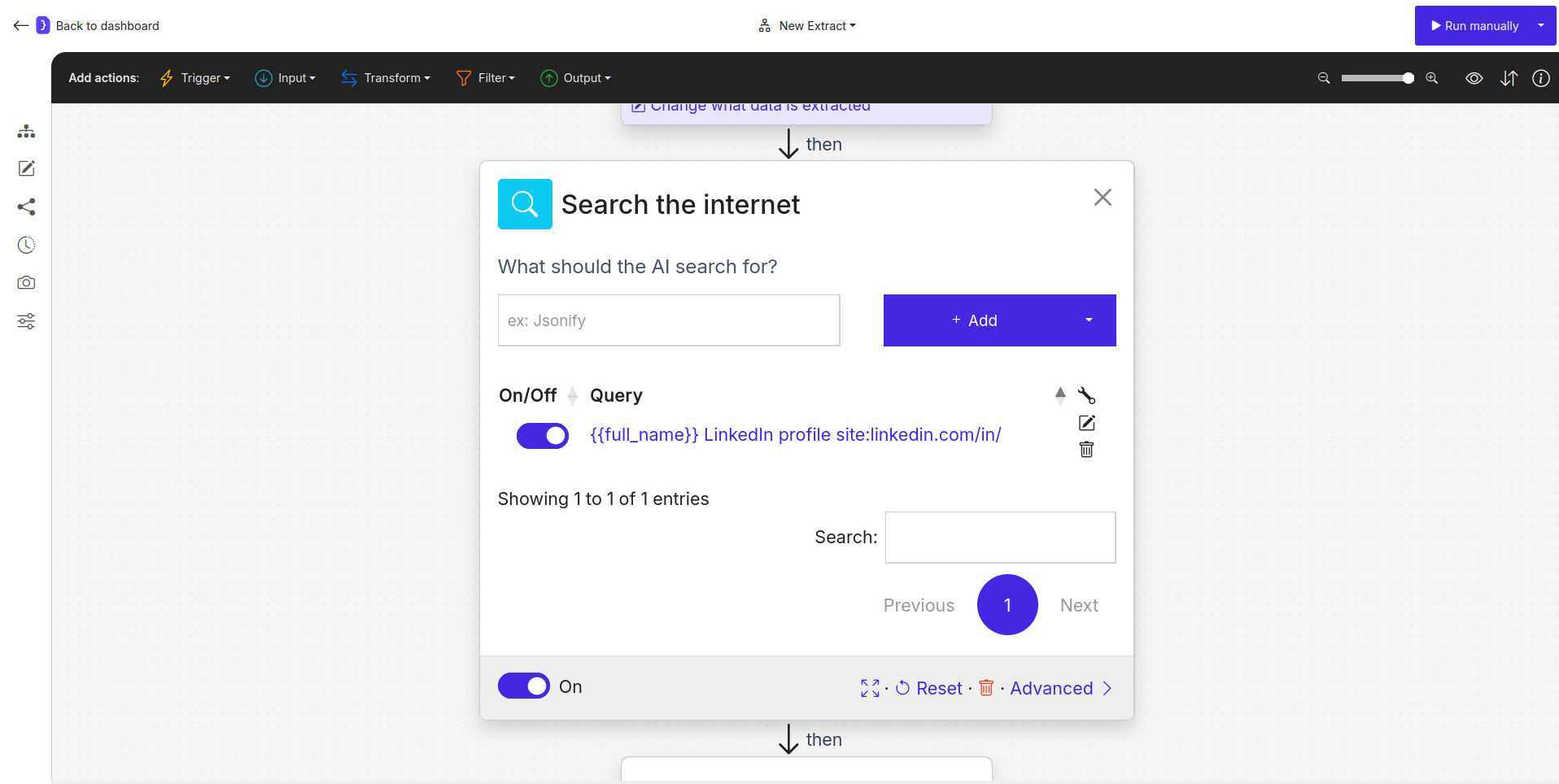
* Select the `Google Search` block.
* **What should the AI search for?:** `{{full_name}} LinkedIn profile site:linkedin.com/in/`
* Using `site:linkedin.com/in/` helps narrow down results to LinkedIn profiles.
*`The output full_name from this block will be processed iteratively for subsequent steps for each name found across all pages.`*
#### 4. Add and Configure `Google Search` Block
* Now, for each `full_name` extracted, we search for their LinkedIn profile.
* To add a new block:
1. Look at the **block categories at the top of the editor** (Trigger, Input, Transform, Filter, Output).
2. Select the **Ibpur** category.
3. From the dropdown list of blocks that appears, select **`Google Search`**.
4. Now, click the **+** icon on the canvas at the point where you want to add the block (i.e., after the first `Extract Data` block). The `Google Search` block will be added and connected.
* Select the `Google Search` block.
* **What should the AI search for?:** `{{full_name}} LinkedIn profile site:linkedin.com/in/`
* Using `site:linkedin.com/in/` helps narrow down results to LinkedIn profiles.
 #### 5. Add and Configure `Find Links` Block
* From the Google search results, we need to find the most relevant LinkedIn profile link.
* To add a new block:
1. Look at the **block categories at the top of the editor**.
2. Select the **Transform** category.
3. From the dropdown list, select **`Find Links`**.
4. Click the **+** icon on the canvas after `Google Search`.
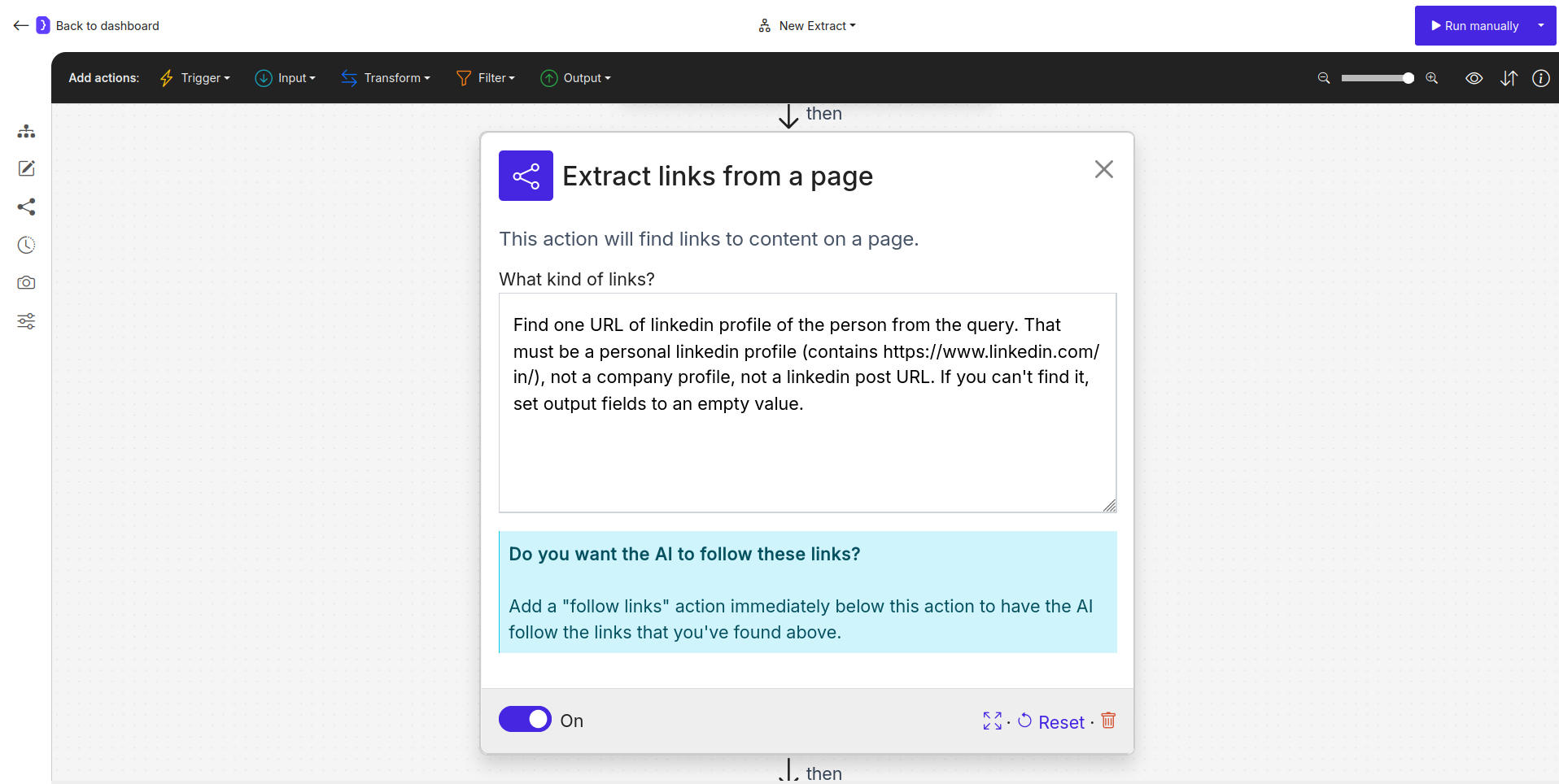
* Select the `Find Links` block.
* **What kind of links?:** `Find one URL of linkedin profile of the person from the query. That must be a personal linkedin profile (contains https://www.linkedin.com/in/), not a company profile, not a linkedin post URL. If you can't find it, set output fields to an empty value.`
#### 5. Add and Configure `Find Links` Block
* From the Google search results, we need to find the most relevant LinkedIn profile link.
* To add a new block:
1. Look at the **block categories at the top of the editor**.
2. Select the **Transform** category.
3. From the dropdown list, select **`Find Links`**.
4. Click the **+** icon on the canvas after `Google Search`.
* Select the `Find Links` block.
* **What kind of links?:** `Find one URL of linkedin profile of the person from the query. That must be a personal linkedin profile (contains https://www.linkedin.com/in/), not a company profile, not a linkedin post URL. If you can't find it, set output fields to an empty value.`
 #### 6. Add and Configure `Follow Links` Block
* Navigate to the found LinkedIn profile.
* To add a new block:
1. Look at the **block categories at the top of the editor**.
2. Select the **Input** category.
3. From the dropdown list, select **`Follow Links`**.
4. Click the **+** icon on the canvas after `Find Links`.
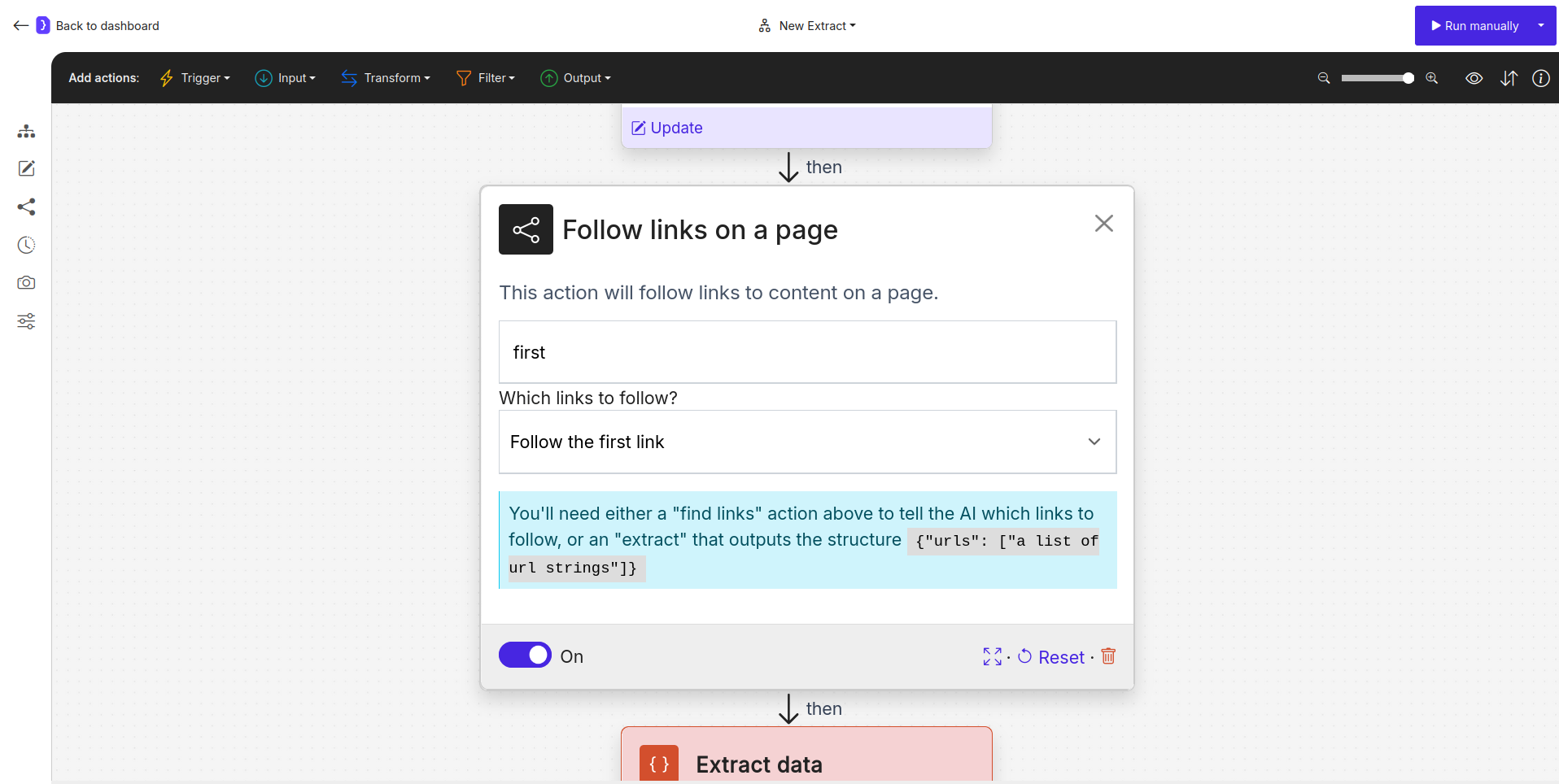
* Select the `Follow Links` block.
* **Which links to follow?:** `Follow the first link` (as we want the most relevant one).
#### 6. Add and Configure `Follow Links` Block
* Navigate to the found LinkedIn profile.
* To add a new block:
1. Look at the **block categories at the top of the editor**.
2. Select the **Input** category.
3. From the dropdown list, select **`Follow Links`**.
4. Click the **+** icon on the canvas after `Find Links`.
* Select the `Follow Links` block.
* **Which links to follow?:** `Follow the first link` (as we want the most relevant one).
 #### 7. Add and Configure Second `Extract Data` Block (From LinkedIn Profile)
* Now on the LinkedIn profile page, extract desired information.
* To add a new block:
1. Look at the **block categories at the top of the editor**.
2. Select the **Transform** category.
3. From the dropdown list, select **`Extract Data`**.
4. Click the **+** icon on the canvas after `Follow Links`.
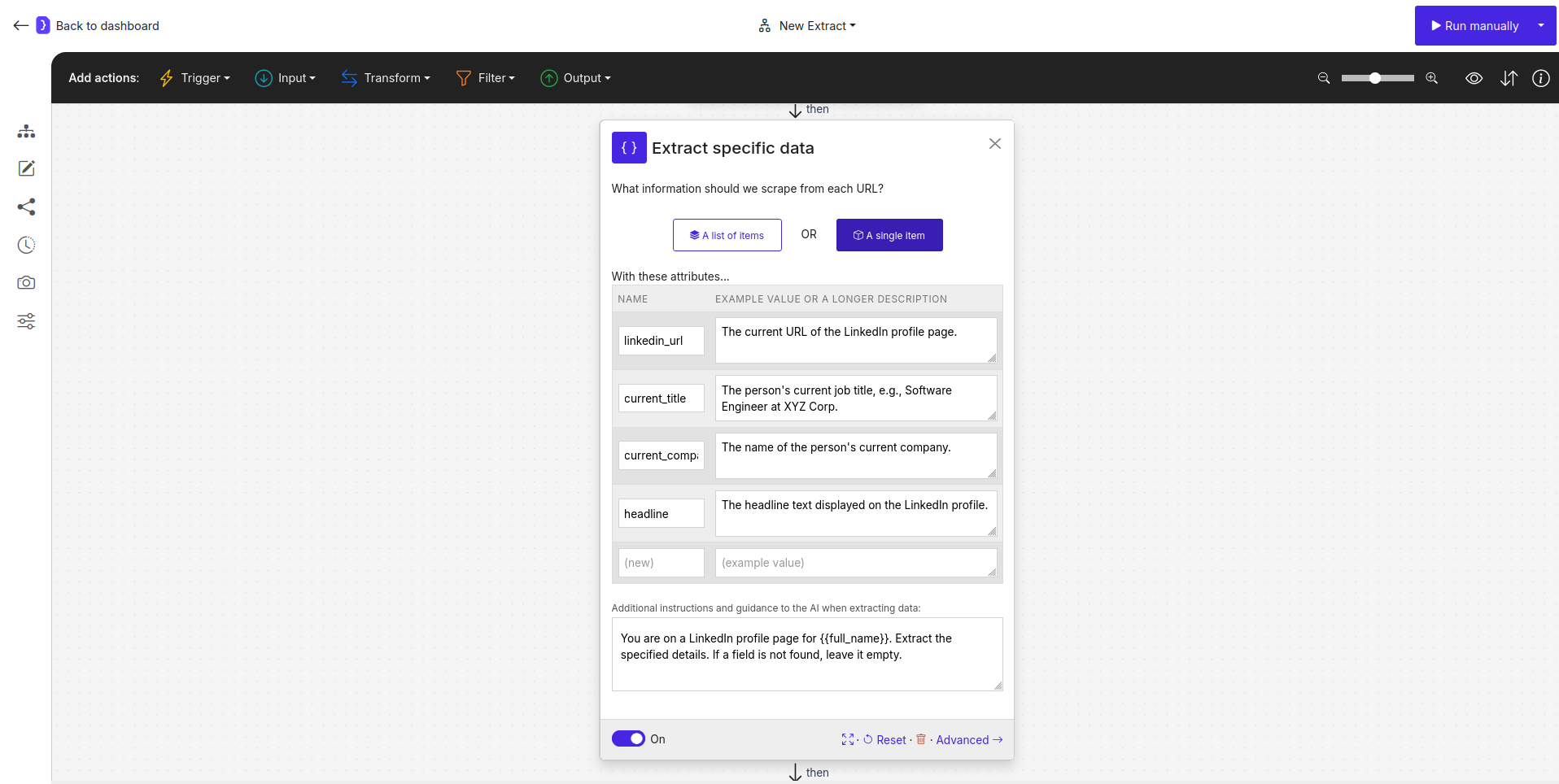
* Select this new `Extract Data` block.
* **What information...?:** `A single item`.
* **Attributes:**
| NAME | EXAMPLE VALUE OR A LONGER DESCRIPTION |
| ----------------- | ---------------------------------------------------------------------- |
| `linkedin_url` | `The current URL of the LinkedIn profile page.` |
| `current_title` | `The person's current job title, e.g., Software Engineer at XYZ Corp.` |
| `current_company` | `The name of the person's current company.` |
| `headline` | `The headline text displayed on the LinkedIn profile.` |
* **Additional instructions...:** `You are on a LinkedIn profile page for {{full_name}}. Extract the specified details. If a field is not found, leave it empty.`
#### 7. Add and Configure Second `Extract Data` Block (From LinkedIn Profile)
* Now on the LinkedIn profile page, extract desired information.
* To add a new block:
1. Look at the **block categories at the top of the editor**.
2. Select the **Transform** category.
3. From the dropdown list, select **`Extract Data`**.
4. Click the **+** icon on the canvas after `Follow Links`.
* Select this new `Extract Data` block.
* **What information...?:** `A single item`.
* **Attributes:**
| NAME | EXAMPLE VALUE OR A LONGER DESCRIPTION |
| ----------------- | ---------------------------------------------------------------------- |
| `linkedin_url` | `The current URL of the LinkedIn profile page.` |
| `current_title` | `The person's current job title, e.g., Software Engineer at XYZ Corp.` |
| `current_company` | `The name of the person's current company.` |
| `headline` | `The headline text displayed on the LinkedIn profile.` |
* **Additional instructions...:** `You are on a LinkedIn profile page for {{full_name}}. Extract the specified details. If a field is not found, leave it empty.`
 ## Scenario B: Starting with a Predefined List of Names
If you already have a list of names (e.g., in a CSV or you can type them in):
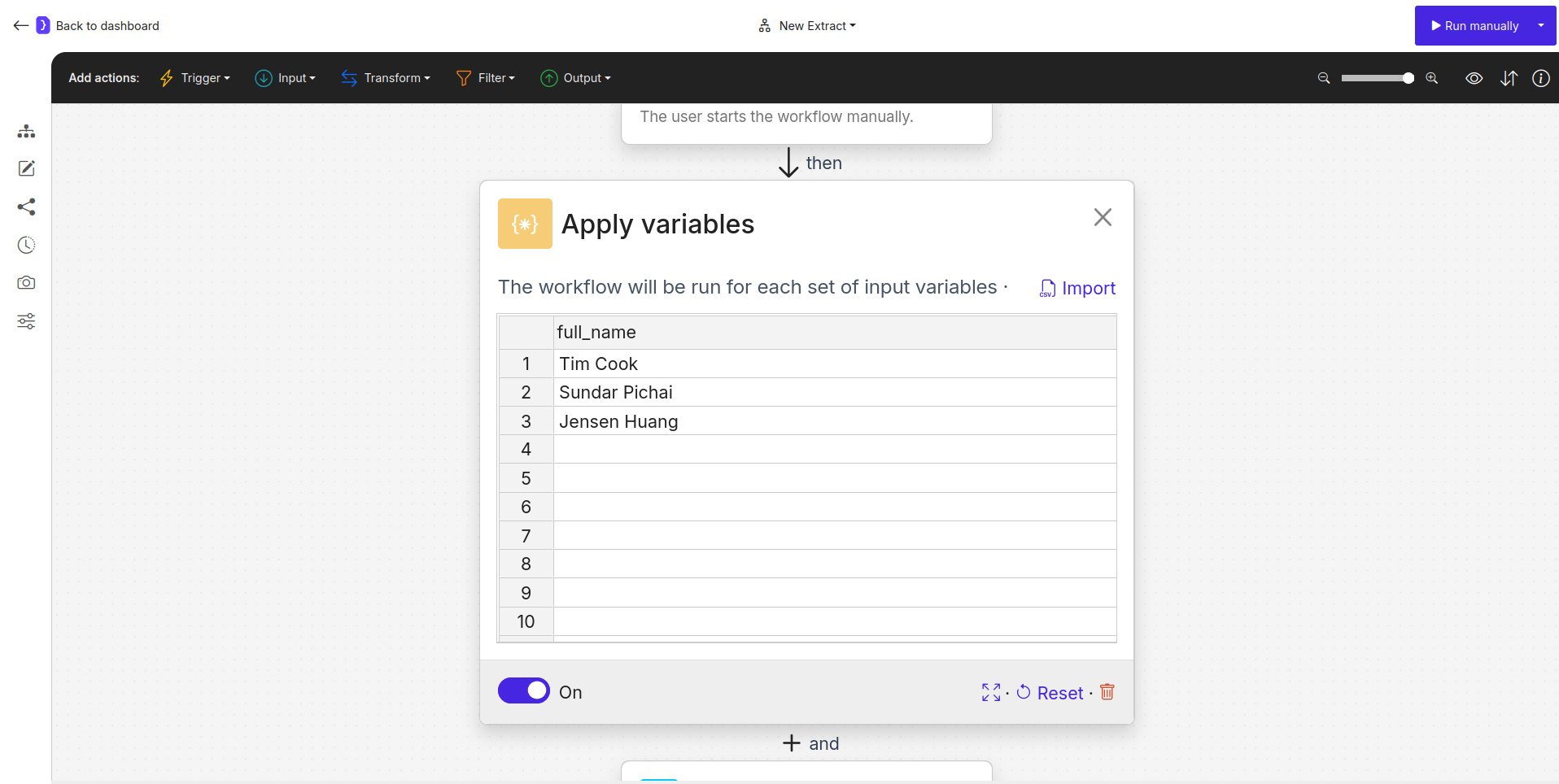
1. **`Start with Open datasets Block:`**
* Create a column named `full_name`.
* Enter each person's name in a new row.
*
## Scenario B: Starting with a Predefined List of Names
If you already have a list of names (e.g., in a CSV or you can type them in):
1. **`Start with Open datasets Block:`**
* Create a column named `full_name`.
* Enter each person's name in a new row.
*
 2. **`Proceed from Step 4 (Add and Configure Google Search Block)`** in Scenario A, using the `{{full_name}}` variable from the `Open datasets` block. You would omit steps 2 and 3 from Scenario A.
## Running and Checking Results
* Click **Run manually**.
* The workflow will iterate through each name, perform the search, navigate, and extract.
* Check the results in **"View as sheet"**. You should have a row for each person with their extracted LinkedIn details.
**Congratulations!** This tutorial covered a more advanced, multi-stage workflow. This pattern of extracting initial data, using it to search, navigating, and then extracting further details is very powerful for many research and data enrichment tasks.
2. **`Proceed from Step 4 (Add and Configure Google Search Block)`** in Scenario A, using the `{{full_name}}` variable from the `Open datasets` block. You would omit steps 2 and 3 from Scenario A.
## Running and Checking Results
* Click **Run manually**.
* The workflow will iterate through each name, perform the search, navigate, and extract.
* Check the results in **"View as sheet"**. You should have a row for each person with their extracted LinkedIn details.
**Congratulations!** This tutorial covered a more advanced, multi-stage workflow. This pattern of extracting initial data, using it to search, navigating, and then extracting further details is very powerful for many research and data enrichment tasks.