> ## Documentation Index
> Fetch the complete documentation index at: https://docs.jsonify.com/llms.txt
> Use this file to discover all available pages before exploring further.
# Open sub-pages
> Instructs the AI agent to navigate to similar types of sub-pages, especially when direct links are not available (e.g., in a product catalog).
The `Open sub-pages` block is a specialized navigation tool designed for iterating through a list of similar items (like products in a catalog or articles in a list) when these items **`do not have direct, standard tag links`**. This block is used when clicks are handled by JavaScript, and the agent needs to understand the *goal* of opening each item to proceed.
Instead of finding and following direct URLs, you provide a goal, and the AI agent intelligently interacts with the page elements to open each item sequentially for processing by subsequent blocks. **This block itself does not extract any data; it only handles the navigation.**
## Purpose
Use the `Open sub-pages` block to navigate through a list of items where standard link-finding is not applicable:
* **JavaScript-Driven Navigation:** The primary use case. For example, clicking on product cards in a catalog that trigger a page change via JavaScript, rather than having a direct `` link.
* **Opening a List of Similar Items for Extraction:** When you need to open a series of visually similar items (products, search results, profiles) one by one, so that a subsequent `Extract Data` block can process each opened page.
For most navigation tasks where elements are standard links (`` tags with `href` attributes), the combination of **`Find Links + Follow Links`** is faster and more precise. Use `Open sub-pages` for more complex, JavaScript-based list navigation.
## Configuration
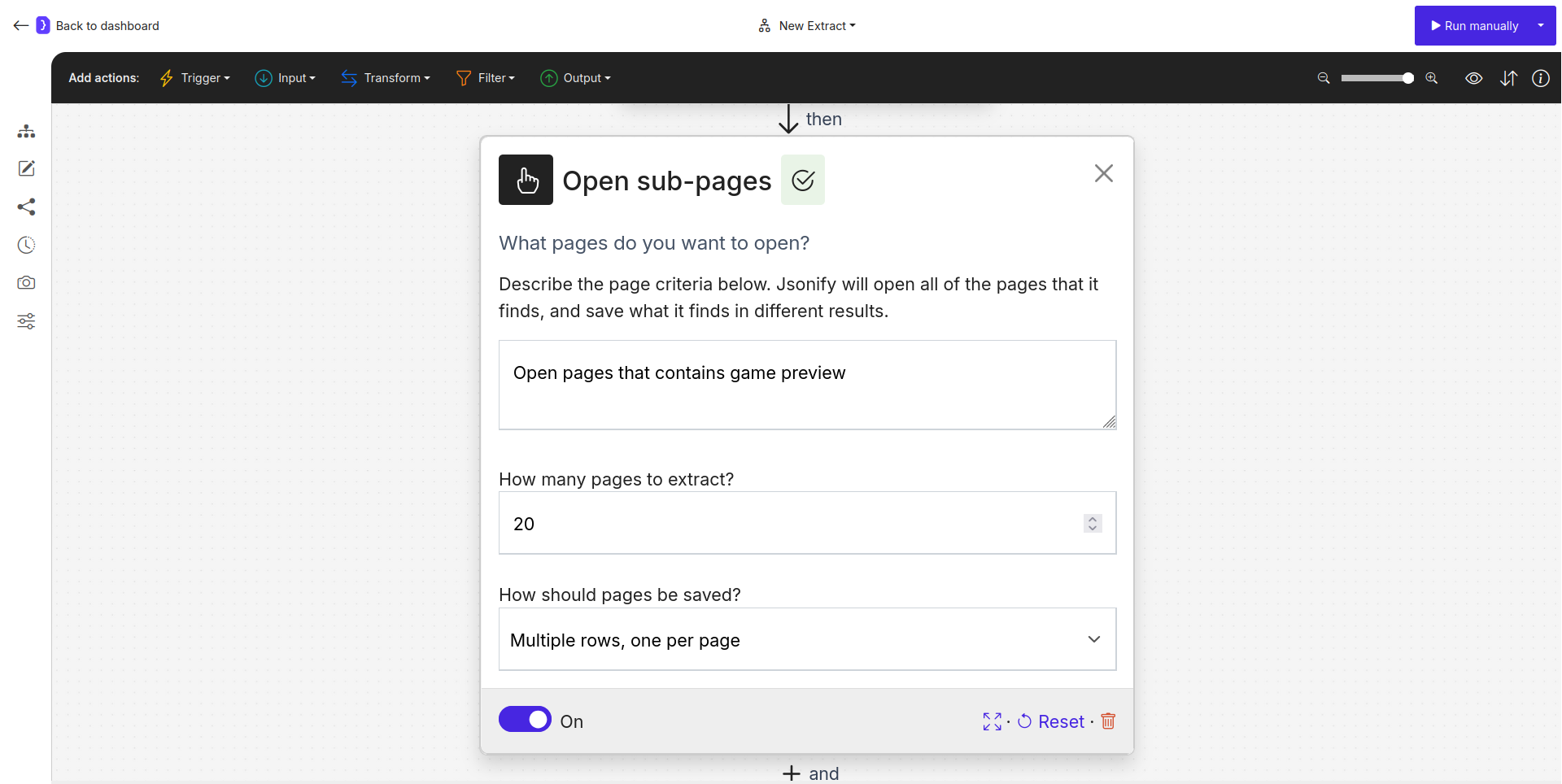
### 1. What pages do you want to open?
This is the primary text field where you describe the criteria for the items the agent should open. This is a goal-oriented prompt.
Be clear and specific. For example: `open each product from the list`, `navigate to each job posting shown on the page`.
### 2. How many pages to extract?
This field sets a limit on the maximum number of matching items the agent will open.
If you set this to `10`, the agent will open a maximum of the first 10 items that match your criteria. The default is typically `5`.
### 3. How should pages be saved?
This dropdown determines how the data from the pages will be handled by a subsequent `Extract Data` block.
* **Multiple rows, one per page:** This is the standard option. The agent will open each sub-page, and the subsequent `Extract Data` block will run on each one, creating a separate row in your results for each page.
* **One combined result:** A more advanced option. The agent will open and analyze all specified sub-pages, and then use its AI capabilities to intelligently combine the data from all of them into a single, consolidated result row. This is useful for summarization or aggregation tasks.
 ## How It Works
1. The workflow navigates to a starting page (e.g., a product category page via `Open Websites`).
2. The `Open sub-pages` block is executed. The AI agent identifies clickable elements that match your description (e.g., "each product in the catalog").
3. The agent interacts with each of these elements sequentially to navigate to the corresponding sub-page, up to the specified limit.
4. For each new page the agent opens, the subsequent `Extract Data` block is triggered to perform the actual data collection from that page. **`The Open sub-pages block itself does not output any data.`**
## Example: Opening Products from a JavaScript Catalog
Imagine an e-commerce category page where clicking a product image (which is not a standard link) navigates to the product page.
1. **`Open Websites Block:`**
* URL: `https://example-shop.com/catalog/shoes`
2. **`Open sub-pages Block (added next):`**
* **What pages do you want to open?:** `open each product from the catalog`
* **How many pages to extract?:** `12`
* **How should pages be saved?:** `Multiple rows, one per page`
3. **`Extract Data Block (added next - MANDATORY for data collection):`**
* This block will run on each of the 12 product pages opened by the previous block.
* You would configure it to extract details like `product_name`, `price`, etc.
**Result:** The workflow will open up to 12 product pages by simulating clicks. The `Extract Data` block will then run on each of those pages, creating a result row for each product with the specified details.
## Key Considerations
* **Navigation Only:** This block's sole purpose is to navigate to sub-pages. It does not extract data. It **`must be followed by an Extract Data block`** to be useful for data collection.
* **Use Case Specificity:** This block is a specialized tool. **`Prefer the Find Links + Follow Links pattern`** for all standard navigation tasks involving `` tags.
* **Goal-Oriented Interaction:** The success of this block relies on the AI's ability to understand your goal ("open each product") and identify the correct interactive elements on the page.
The `Open sub-pages` block is an advanced navigation tool for handling modern, JavaScript-heavy websites where traditional link-finding methods may not apply.
## How It Works
1. The workflow navigates to a starting page (e.g., a product category page via `Open Websites`).
2. The `Open sub-pages` block is executed. The AI agent identifies clickable elements that match your description (e.g., "each product in the catalog").
3. The agent interacts with each of these elements sequentially to navigate to the corresponding sub-page, up to the specified limit.
4. For each new page the agent opens, the subsequent `Extract Data` block is triggered to perform the actual data collection from that page. **`The Open sub-pages block itself does not output any data.`**
## Example: Opening Products from a JavaScript Catalog
Imagine an e-commerce category page where clicking a product image (which is not a standard link) navigates to the product page.
1. **`Open Websites Block:`**
* URL: `https://example-shop.com/catalog/shoes`
2. **`Open sub-pages Block (added next):`**
* **What pages do you want to open?:** `open each product from the catalog`
* **How many pages to extract?:** `12`
* **How should pages be saved?:** `Multiple rows, one per page`
3. **`Extract Data Block (added next - MANDATORY for data collection):`**
* This block will run on each of the 12 product pages opened by the previous block.
* You would configure it to extract details like `product_name`, `price`, etc.
**Result:** The workflow will open up to 12 product pages by simulating clicks. The `Extract Data` block will then run on each of those pages, creating a result row for each product with the specified details.
## Key Considerations
* **Navigation Only:** This block's sole purpose is to navigate to sub-pages. It does not extract data. It **`must be followed by an Extract Data block`** to be useful for data collection.
* **Use Case Specificity:** This block is a specialized tool. **`Prefer the Find Links + Follow Links pattern`** for all standard navigation tasks involving `` tags.
* **Goal-Oriented Interaction:** The success of this block relies on the AI's ability to understand your goal ("open each product") and identify the correct interactive elements on the page.
The `Open sub-pages` block is an advanced navigation tool for handling modern, JavaScript-heavy websites where traditional link-finding methods may not apply.