> ## Documentation Index
> Fetch the complete documentation index at: https://docs.jsonify.com/llms.txt
> Use this file to discover all available pages before exploring further.
# Use credentials
> Load a pre-configured set of cookies into the AI agent to automate actions on websites that require a login.
The `Use credentials` block is a crucial tool for automating websites that require user authentication. It works by loading a stored set of browser cookies into the AI agent's session, effectively "logging it in" before it visits a website.
This block does not handle the login process itself (typing a username/password). Instead, it uses a pre-existing, valid session that you have saved as a credential.
## Purpose
Use the `Use credentials` block to:
* Automate actions on pages that are behind a login wall (e.g., dashboards, profile pages, account settings).
* Scrape data that is only visible to logged-in users.
* Perform actions on behalf of a specific user account.
## Prerequisites: Creating a Credential Store
Before you can use this block, you **must** create a "credential store" by exporting your browser cookies and uploading them to Jsonify.
1. **Export Cookies:** Log into the target website in your browser. Use a browser extension like "Get cookies.txt LOCALLY" to export your session cookies as a `cookies.txt` file.
2. **Create Store in Jsonify:** Navigate to the **`Integrations ➙ Website Credentials`** section in your Jsonify dashboard.
3. **Upload Cookies:** Create a new credential store, give it a memorable name (e.g., "Pinterest Account"), and upload your `cookies.txt` file to it.
For a detailed guide, see the [Handling Authentication with Cookies](/Leveling-Up/Handling-Authentication-with-Cookies) page.
## Configuration
The block itself has only one configuration option:
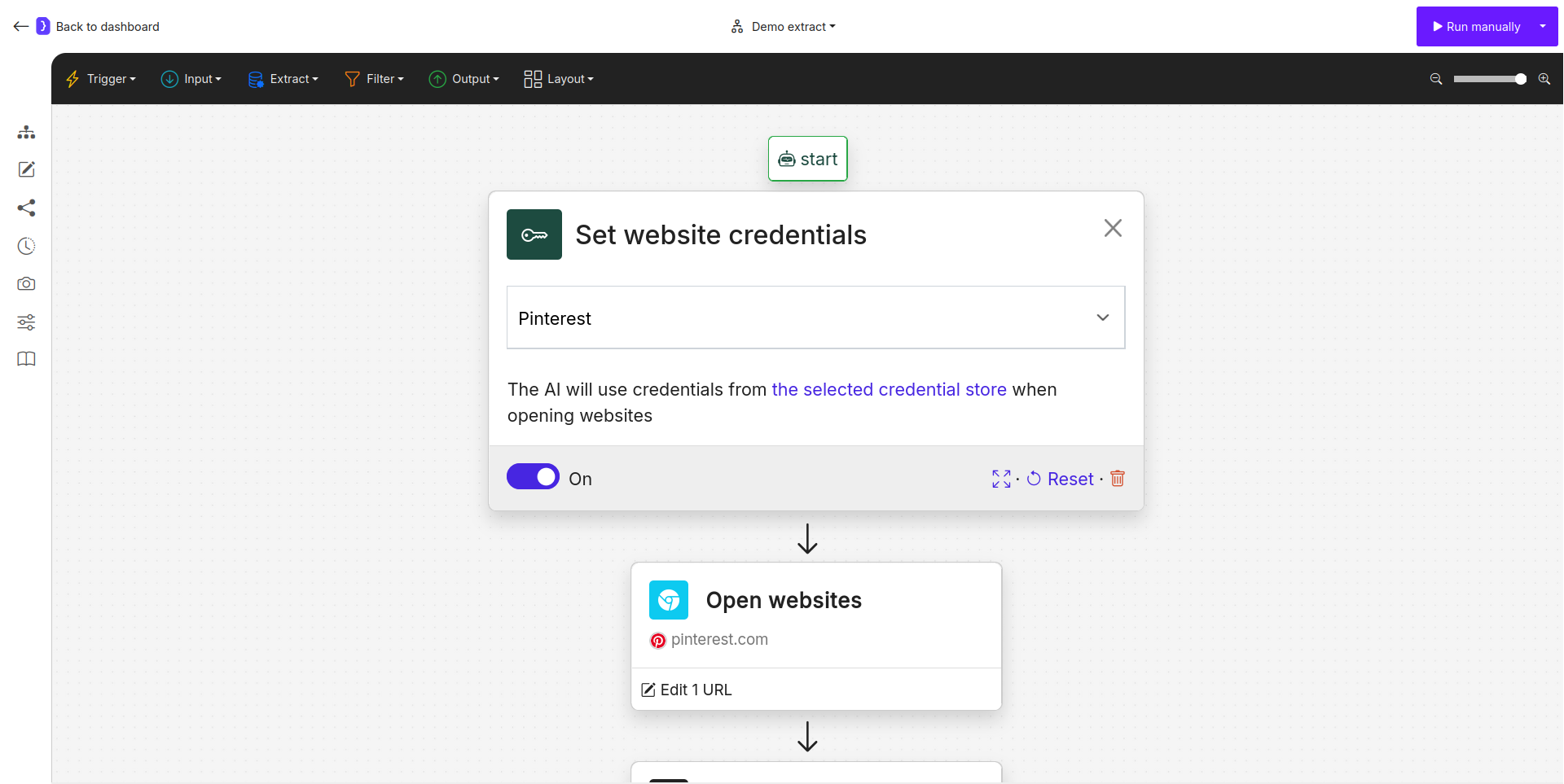
1. **Credential Store Dropdown:**
* This is a dropdown menu that lists all of the website credential stores you have created.
* Simply select the name of the credential store you wish to use for this workflow (e.g., "Pinterest").
 ## How It Works
1. The `Use credentials` block should be placed at the **beginning** of your workflow, before any navigation blocks like `Open Websites`.
2. When the workflow runs, this block loads the cookies from the selected credential store into the AI agent's browser instance.
3. When a subsequent `Open Websites` block navigates to a URL for the same domain (e.g., `pinterest.com`), the browser will present these cookies, and the website will recognize the agent as being logged in.
4. The agent can then access and interact with pages that require authentication.
## Example: Scraping Your Private Pinterest Boards
1. **`Set website credentials Block:`**
* This is the first block in the workflow.
* Select "Pinterest" from the dropdown menu.
2. **`Open Websites Block (added next):`**
* **URL:** Enter the direct URL to your private "Saved" tab (e.g., `https://www.pinterest.com/YOUR_USERNAME/saved/`).
3. **`Extract Data Block (added next):`**
* Configure it to extract the names of your private boards from the page.
* **Result:** The workflow will successfully run. The agent uses your stored credentials to authenticate, access the private page, and extract the data. Without the `Use credentials` block, this would fail.
## Key Considerations
* **Placement is Crucial:** This block must come before any `Open Websites` or other navigation blocks that visit the authenticated site.
* **Cookie Expiration:** Cookies have a limited lifespan. If your workflow suddenly starts failing with authentication errors, your stored session has likely expired. You will need to re-export a new `cookies.txt` file and upload it to the same credential store to update it.
* **Security:** This method is secure. Your cookies are encrypted and managed centrally in the credential store, not exposed in the workflow itself.
## How It Works
1. The `Use credentials` block should be placed at the **beginning** of your workflow, before any navigation blocks like `Open Websites`.
2. When the workflow runs, this block loads the cookies from the selected credential store into the AI agent's browser instance.
3. When a subsequent `Open Websites` block navigates to a URL for the same domain (e.g., `pinterest.com`), the browser will present these cookies, and the website will recognize the agent as being logged in.
4. The agent can then access and interact with pages that require authentication.
## Example: Scraping Your Private Pinterest Boards
1. **`Set website credentials Block:`**
* This is the first block in the workflow.
* Select "Pinterest" from the dropdown menu.
2. **`Open Websites Block (added next):`**
* **URL:** Enter the direct URL to your private "Saved" tab (e.g., `https://www.pinterest.com/YOUR_USERNAME/saved/`).
3. **`Extract Data Block (added next):`**
* Configure it to extract the names of your private boards from the page.
* **Result:** The workflow will successfully run. The agent uses your stored credentials to authenticate, access the private page, and extract the data. Without the `Use credentials` block, this would fail.
## Key Considerations
* **Placement is Crucial:** This block must come before any `Open Websites` or other navigation blocks that visit the authenticated site.
* **Cookie Expiration:** Cookies have a limited lifespan. If your workflow suddenly starts failing with authentication errors, your stored session has likely expired. You will need to re-export a new `cookies.txt` file and upload it to the same credential store to update it.
* **Security:** This method is secure. Your cookies are encrypted and managed centrally in the credential store, not exposed in the workflow itself.