> ## Documentation Index
> Fetch the complete documentation index at: https://docs.jsonify.com/llms.txt
> Use this file to discover all available pages before exploring further.
# Interact with Page
> Instruct your AI Agent to perform a precise sequence of actions or to achieve a high-level goal on a webpage.
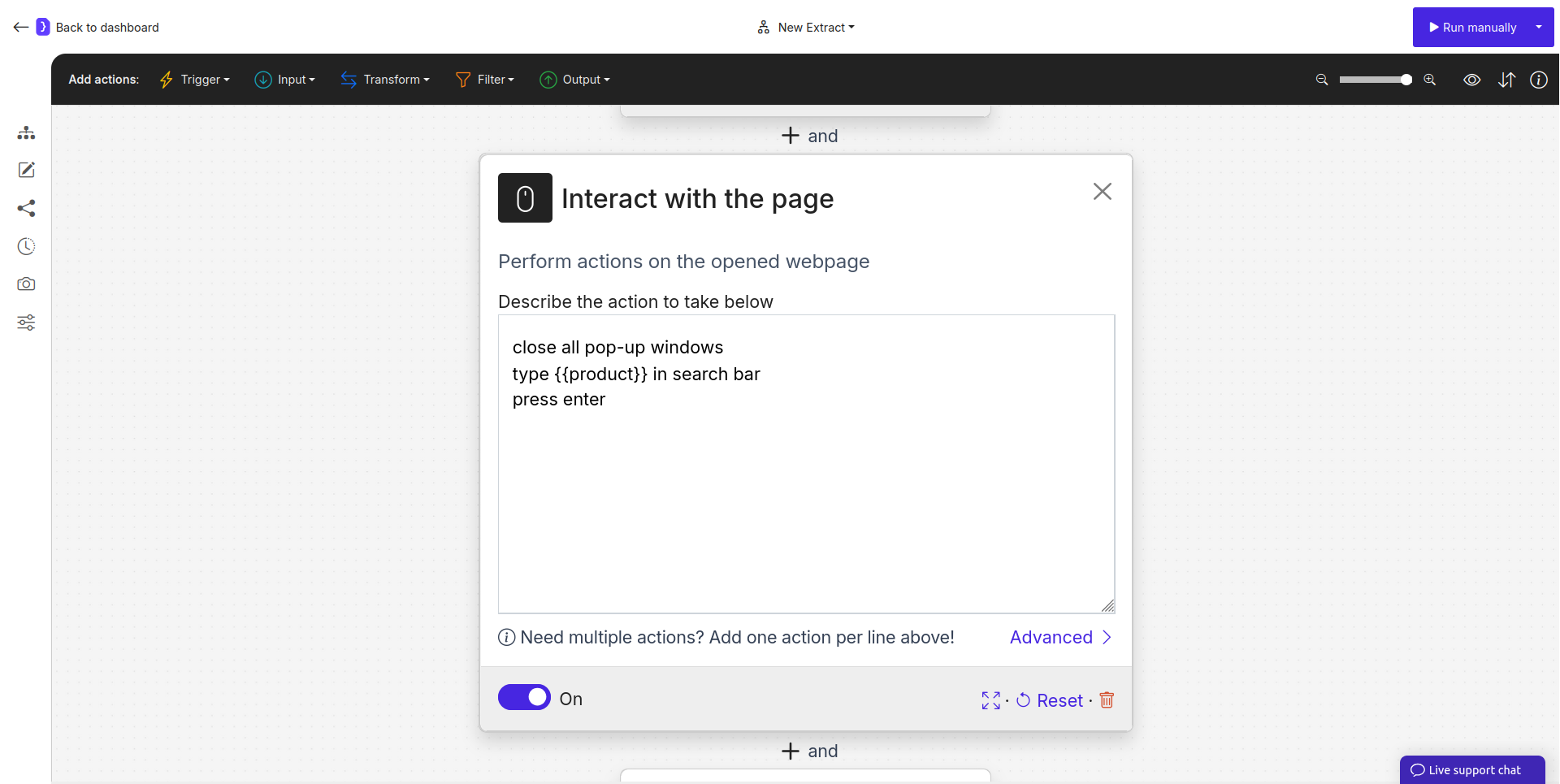
The `Interact with Page` block is a highly versatile tool for controlling the AI agent's actions on a webpage. You can use it in two ways: by providing **a precise, sequential list of commands**, or by defining **a single, high-level goal** that the agent will attempt to achieve by performing multiple sub-steps automatically.
This makes it essential for everything from simple button clicks to complex tasks like filling out forms or performing a search.
## Purpose
Use the `Interact with Page` block when you need your AI Agent to:
* **Perform Step-by-Step Actions:** Click buttons, type text, select from dropdowns, navigate, etc.
* **Achieve a Goal:** Execute a multi-step task from a single instruction, like searching for an item or completing a login process, letting the AI handle the intermediate steps.
* **Handle Dynamic Elements:** Close pop-ups, interact with menus, or trigger JavaScript events.
* **Control Workflow Execution:** Conditionally pause or stop the workflow.
## Configuration
### 1. Describing the Task
This is the core text area where you define what the agent should do. You can choose one of two approaches:
#### Approach A: Step-by-Step Commands (High Reliability)
For maximum control and reliability, list precise commands, with **each new command on a new line.** The agent will execute these in the exact order you provide.
* **Example:**
1. `type '{{username}}' into 'Username or Email field'`
2. `type '{{password}}' into 'Password input'`
3. `click on button 'Sign In'`
#### Approach B: Goal-Oriented Task (High Flexibility)
You can provide a single, high-level instruction. The agent will then attempt to break this down into the necessary sub-steps. This requires setting a sufficient "Maximum number of steps" in the Advanced Options.
* **Example:**
* `Find car part by part number in the search bar. Part number is {{part_number}}.`
* In this case, the agent will attempt to perform a sequence of actions like: closing pop-ups, clicking the search bar, typing the part number, and clicking the search button, all from one instruction.
### 2. Available Commands & Syntax (for Step-by-Step Mode)
* **`click`**: Clicks on a target element (`click on button 'Log In'`).
* **`type`**: Types text into a field (`type '{{text}}' into 'Search bar'`).
* **`goto`**: Opens a specific URL (`goto 'https://example.com/contact'`).
* **`press`**: Presses a keyboard key (`press 'Enter'`).
* **`back`**: Goes to the previous page.
* **`idle`**: Waits for 30 seconds.
* **`stop`**: Immediately stops the workflow run (`stop 'Item not found'`).
### 3. Using Variables
Variables (e.g., `{{part_number}}`) are crucial for both modes, allowing you to make your interactions dynamic.
### 4. Advanced Options
* **Maximum number of steps:** This is critical for goal-oriented tasks. The default is `1`. For a goal like finding a car part, you must increase this value (e.g., to `5` or higher) to give the agent enough "action credits" to perform all the necessary sub-steps (close pop-ups, click, type, click again).
 ## Examples
**Example 1: Goal-Oriented Search (Recommended for flexibility)**
* **Instruction:** `Find car part by part number in the search bar. Part number is {{part_number}}.`
* **Advanced > Maximum number of steps:** `5`
* **Result:** The agent autonomously handles pop-ups, clicks, typing, and submitting the search.
**Example 2: Logging into an Account (Step-by-Step for reliability)**
1. `type '{{username}}' into 'Username or Email field'`
2. `type '{{password}}' into 'Password input'`
3. `press 'Enter'`
4. `idle`
5. `goto 'https://app.example.com/settings/profile'`
## Key Considerations
* **Choose the Right Approach:** Use step-by-step commands for precise, linear processes. Use a goal-oriented task for more complex interactions where the exact sequence of clicks might vary or involve handling unexpected elements like pop-ups.
* **Set Step Budget for Goals:** When using a goal-oriented instruction, always set an adequate "Maximum number of steps".
* **Clarity is Key:** Whether writing steps or a goal, be as clear and specific as possible.
The `Interact with Page` block gives you a flexible spectrum of control, from micromanaging every action to defining a high-level goal and letting the AI handle the details.
## Examples
**Example 1: Goal-Oriented Search (Recommended for flexibility)**
* **Instruction:** `Find car part by part number in the search bar. Part number is {{part_number}}.`
* **Advanced > Maximum number of steps:** `5`
* **Result:** The agent autonomously handles pop-ups, clicks, typing, and submitting the search.
**Example 2: Logging into an Account (Step-by-Step for reliability)**
1. `type '{{username}}' into 'Username or Email field'`
2. `type '{{password}}' into 'Password input'`
3. `press 'Enter'`
4. `idle`
5. `goto 'https://app.example.com/settings/profile'`
## Key Considerations
* **Choose the Right Approach:** Use step-by-step commands for precise, linear processes. Use a goal-oriented task for more complex interactions where the exact sequence of clicks might vary or involve handling unexpected elements like pop-ups.
* **Set Step Budget for Goals:** When using a goal-oriented instruction, always set an adequate "Maximum number of steps".
* **Clarity is Key:** Whether writing steps or a goal, be as clear and specific as possible.
The `Interact with Page` block gives you a flexible spectrum of control, from micromanaging every action to defining a high-level goal and letting the AI handle the details.