> ## Documentation Index
> Fetch the complete documentation index at: https://docs.jsonify.com/llms.txt
> Use this file to discover all available pages before exploring further.
# Open datasets
> Provide structured data as input for your workflow by creating or importing multiple datasets, each containing variables.
The `Open datasets` block is the primary way to introduce structured, tabular data into your workflow. It allows you to create or import one or more datasets. The workflow then iterates through a combined set of all enabled datasets, making the data from each row available as variables to subsequent blocks.
This block acts as a powerful starting point, enabling you to run the same workflow logic across many different inputs.
## Purpose
Use the `Open datasets` block to:
* Run a workflow for a list of items (e.g., company names, product URLs, search keywords).
* Import data from a CSV file to be processed.
* Manage multiple distinct sets of input data within a single workflow block.
* Provide the variables needed for dynamic automation in subsequent steps.
## Configuration
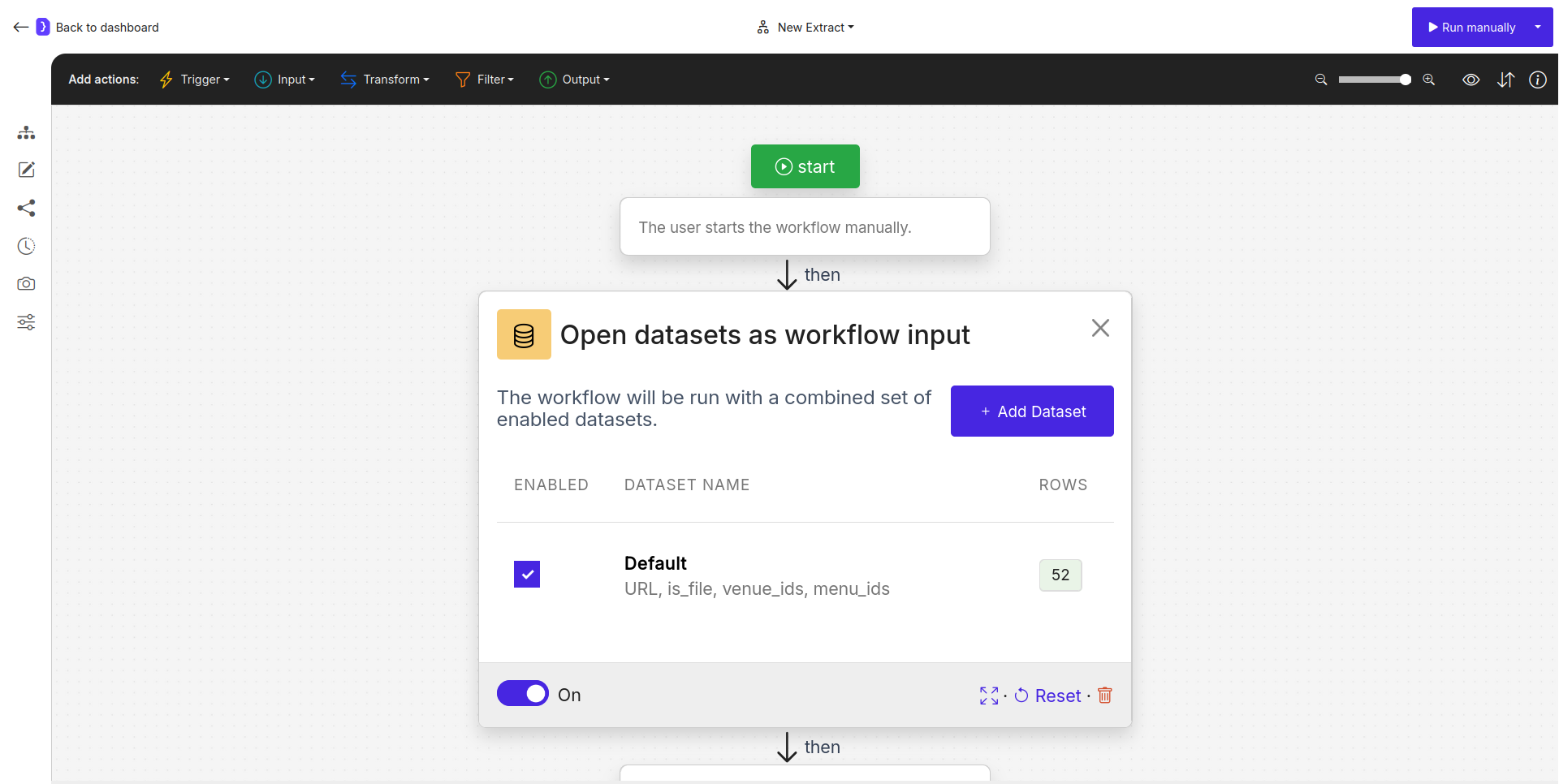
The main configuration panel for the `Open datasets` block shows a list of available datasets for the workflow.
1. **Dataset List View:**
* **ENABLED:** A checkbox to include or exclude a specific dataset from the workflow run. The workflow will only process rows from datasets that are enabled.
* **DATASET NAME:** The name of the dataset. By default, the first one is named "Default". You can rename it. Clicking on the dataset name (e.g., on "Default") opens the full-screen data table editor for that dataset.
* **ROWS:** Shows the number of data rows in that dataset.
* **+ Add Dataset Button:** Click this to create a new, empty dataset in the list.
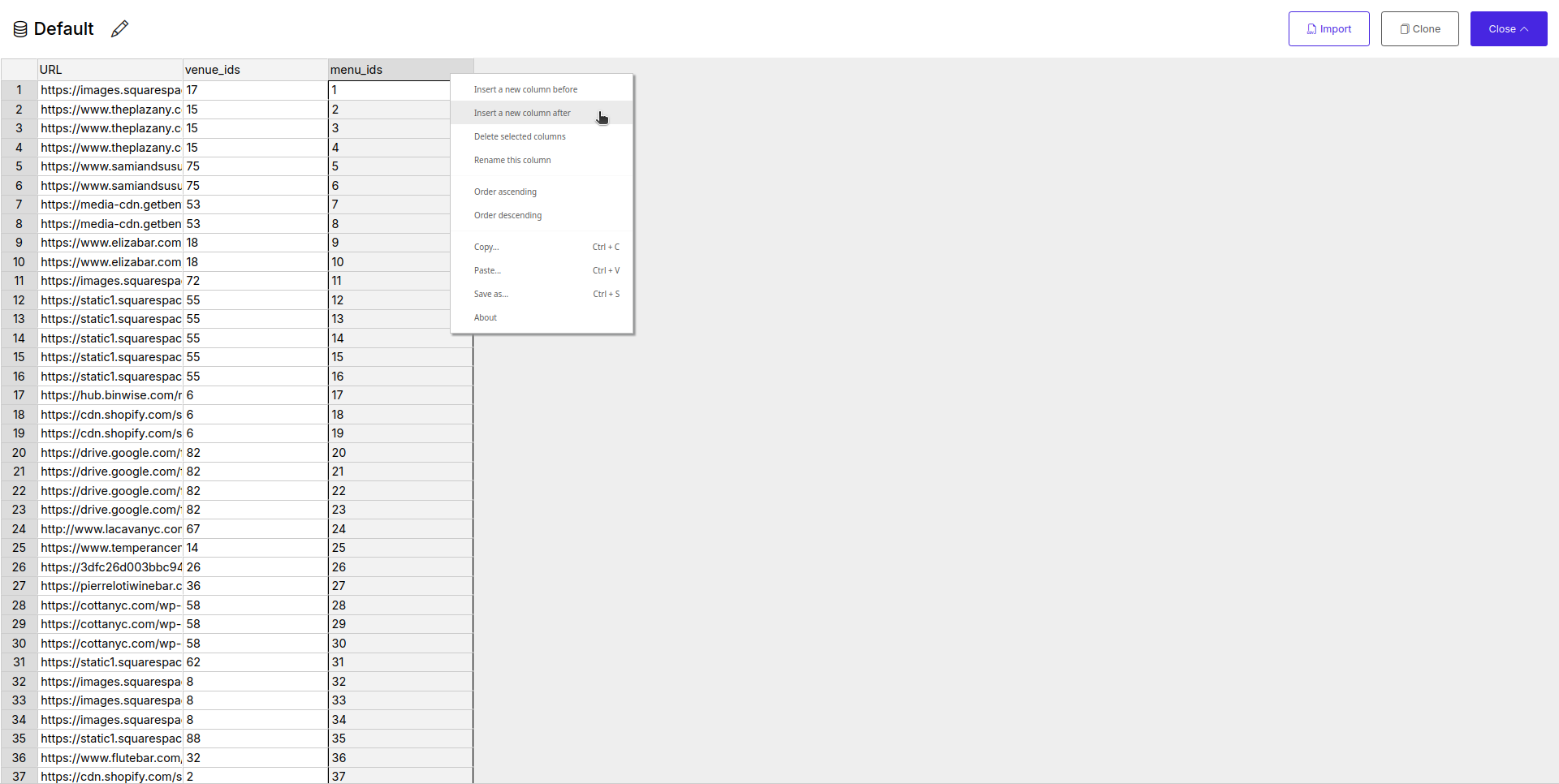
2. **Data Table Editor (Full-screen view):**
* After clicking a dataset name, a full-screen table editor opens. This is where you manage the data for that specific dataset.
* **Columns as Variable Names:** Each column header you define becomes a variable name (e.g., `URL`, `company_name`, `search_keyword`). Remember, these names are **case-sensitive**.
* **Rows as Value Sets:** Each row in the table represents a distinct set of values for these variables.
* **Import Button:** Use this to upload data from a CSV file into the current dataset. The first row of your CSV will be used as the column headers (variable names).
* **Clone Button:** Creates a duplicate of the current dataset.
 ## How It Works
1. You define one or more datasets within the `Open datasets` block.
2. You enable the datasets you wish to use for the run.
3. When the workflow runs, it combines all the rows from all **enabled** datasets into a single master list.
4. The workflow then iterates through each row of this combined list. For each row, the values are assigned to variables (e.g., `{{URL}}`, `{{company_name}}`), and the subsequent blocks are executed using these variables.
## Special Column Name: `URL`
If you name a column exactly `URL` (case-sensitive) and provide valid, complete URLs (starting with `http://` or `https://`) in its rows, the AI Agent will automatically open each of these URLs. In this specific case, a subsequent `Open Websites` block is not required to open these particular URLs.
## Example: Processing URLs from Two Datasets
1. **`Open datasets Block:`**
* **Dataset 1 ("Competitors"):** Enabled. Contains a `URL` column with links to competitor websites.
* **Dataset 2 ("Partners"):** Enabled. Also contains a `URL` column with links to partner websites.
* **Dataset 3 ("Old\_Data"):** Disabled. Contains old URLs that should not be processed.
2. **`Extract Data Block (added next):`**
* Configured to extract the `` tag from each page.
* **Result:** The workflow will first process all URLs from the "Competitors" dataset, then all URLs from the "Partners" dataset. The `Extract Data` block will run for each URL from both enabled datasets, and the results will show the page titles for all of them. The "Old\_Data" dataset will be ignored.
## Key Considerations
* **Variable Names are Case-Sensitive:** `{{url}}` is different from `{{URL}}`. Ensure consistency.
* **Combined Datasets:** The workflow processes a combined list from all *enabled* datasets. The order of processing usually follows the order of datasets in the list and the order of rows within each dataset.
* **Primary Data Source:** This block is a fundamental data source. It initiates the iterative execution of the workflow for each row of data it provides.
The `Open datasets` block is your central hub for managing and inputting tabular data to drive powerful, scalable, and reusable automations in Jsonify.
## How It Works
1. You define one or more datasets within the `Open datasets` block.
2. You enable the datasets you wish to use for the run.
3. When the workflow runs, it combines all the rows from all **enabled** datasets into a single master list.
4. The workflow then iterates through each row of this combined list. For each row, the values are assigned to variables (e.g., `{{URL}}`, `{{company_name}}`), and the subsequent blocks are executed using these variables.
## Special Column Name: `URL`
If you name a column exactly `URL` (case-sensitive) and provide valid, complete URLs (starting with `http://` or `https://`) in its rows, the AI Agent will automatically open each of these URLs. In this specific case, a subsequent `Open Websites` block is not required to open these particular URLs.
## Example: Processing URLs from Two Datasets
1. **`Open datasets Block:`**
* **Dataset 1 ("Competitors"):** Enabled. Contains a `URL` column with links to competitor websites.
* **Dataset 2 ("Partners"):** Enabled. Also contains a `URL` column with links to partner websites.
* **Dataset 3 ("Old\_Data"):** Disabled. Contains old URLs that should not be processed.
2. **`Extract Data Block (added next):`**
* Configured to extract the `` tag from each page.
* **Result:** The workflow will first process all URLs from the "Competitors" dataset, then all URLs from the "Partners" dataset. The `Extract Data` block will run for each URL from both enabled datasets, and the results will show the page titles for all of them. The "Old\_Data" dataset will be ignored.
## Key Considerations
* **Variable Names are Case-Sensitive:** `{{url}}` is different from `{{URL}}`. Ensure consistency.
* **Combined Datasets:** The workflow processes a combined list from all *enabled* datasets. The order of processing usually follows the order of datasets in the list and the order of rows within each dataset.
* **Primary Data Source:** This block is a fundamental data source. It initiates the iterative execution of the workflow for each row of data it provides.
The `Open datasets` block is your central hub for managing and inputting tabular data to drive powerful, scalable, and reusable automations in Jsonify.