> ## Documentation Index
> Fetch the complete documentation index at: https://docs.jsonify.com/llms.txt
> Use this file to discover all available pages before exploring further.
# Open files
> Process local files by uploading them directly into your workflow to be used as a data source.
The `Open files` block allows you to use your own local files as a direct input source for a workflow. Instead of navigating to a public URL, the AI Agent will process the content of the file(s) you upload. This is ideal for analyzing or extracting data from documents you already have.
## Purpose
Use the `Open files` block to:
* Extract structured data from local PDF files, such as invoices, reports, or resumes.
* Analyze the content of text files (.txt, .md, etc.).
* Process data from multiple local documents in a single workflow run.
* Provide a set of "private" documents for the AI to work with, without needing to host them online.
## Configuration
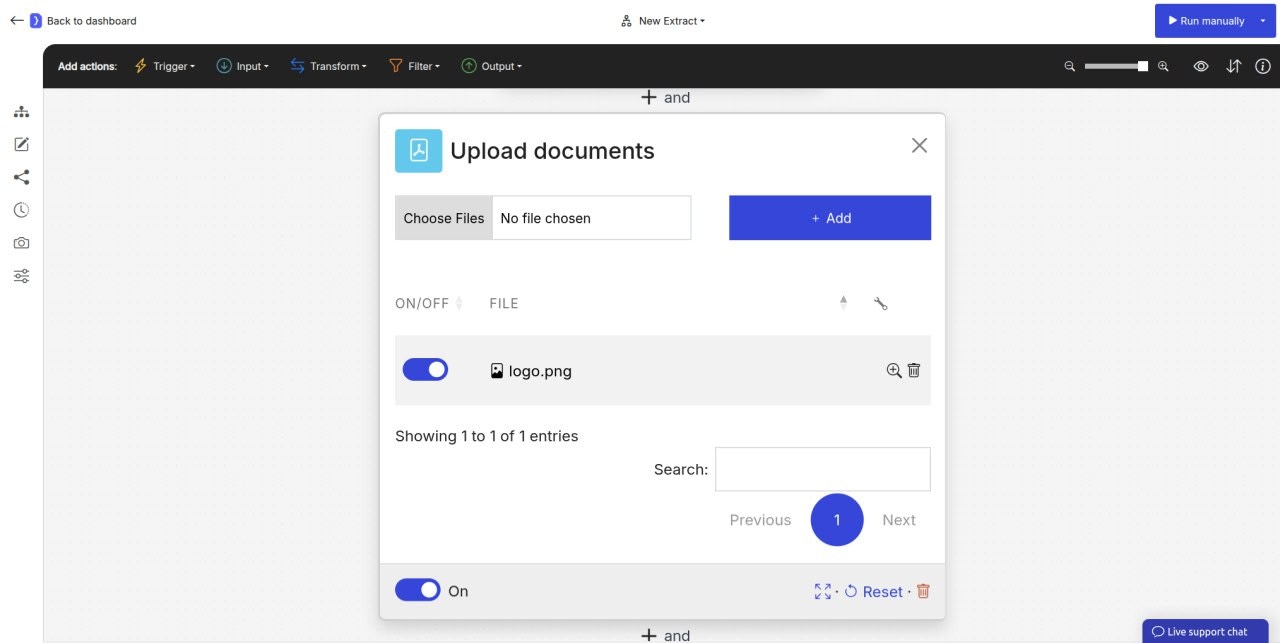
1. **File Selection:**
* Click the **"Choose Files"** (Select files) button to open your local file browser.
* You can select one or more files to upload.
* Once selected, the file names will appear in a list within the block's configuration panel.
2. **Managing Uploaded Files:**
* **Toggle ON/OFF:** Each uploaded file in the list has a toggle switch. Only files that are **ON** will be processed by the agent. This allows you to include or exclude certain files for a given run without re-uploading them.
* **Delete:** You can remove individual files from the list by clicking a delete icon (often found to the right of the file name). The main **Delete** button in the bottom corner typically removes the entire block from the workflow.
* **+ Add Button:** This button allows you to add more files to the list.
 ## How It Works
1. You select and upload one or more local files using the `Open files` block.
2. When the workflow runs, this block acts as a data source.
3. The workflow will iterate through each **enabled** file in the list.
4. For each file, the AI Agent "opens" it in its environment and makes the content available to subsequent blocks.
5. The blocks placed after `Open files` (such as `Extract Data`) will then execute, operating on the content of the current file being processed.
## Output Data Structure
The `Open files` block itself doesn't output structured data in the same way `Extract Data` does. Instead, it provides the *content* of each file to the next block in the sequence.
When a subsequent `Extract Data` block runs, it will see the full text content of the currently processed file. You can then define an extraction schema to pull structured information from this text.
## Example: Extracting Information from PDF Invoices
1. **`Open files Block:`**
* Click "Select files" and upload three PDF invoices: `invoice_101.pdf`, `invoice_102.pdf`, and `invoice_103.pdf`.
* Ensure all three are toggled **ON**.
2. **`Extract Data Block (added next):`**
* **What information...?:** Select `A single item` (since each file represents one invoice).
* **Attributes:**
| NAME | EXAMPLE VALUE OR A LONGER DESCRIPTION |
| ---------------- | ---------------------------------------------------- |
| `invoice_number` | `The unique invoice number or ID.` |
| `customer_name` | `The name of the customer the invoice is billed to.` |
| `total_amount` | `The final total amount due, as a number.` |
| `due_date` | `The payment due date, in YYYY-MM-DD format.` |
* **Additional instructions...:** `You are reading a PDF invoice. Extract the specified fields. If a field is not present, leave it empty.`
* **Result:** The workflow will run three times (once for each uploaded PDF). The output will be a structured list of three items, each containing the extracted invoice number, customer name, total amount, and due date from the respective PDF file.
## Key Considerations
* **Supported File Types:** Be aware of the supported file types (e.g., PDF, TXT, DOCX, etc.). The agent's ability to accurately read a file depends on its format. Text-based documents like PDFs are well-supported.
* **File Content as Context:** The entire content of the uploaded file is provided as the context for the next block. For `Extract Data`, you are essentially instructing the AI to read through this entire text block to find the information you need.
* **No Browser Interaction:** This block operates on local files and does not navigate the web.
* **Data Source:** This block acts as a primary data source, initiating iterations for each file in the list, much like the `Apply Variables` or `Read RSS feeds` blocks.
The `Open files` block is a versatile tool for bringing your own local data directly into the powerful analytical and extraction engine of Jsonify.
## How It Works
1. You select and upload one or more local files using the `Open files` block.
2. When the workflow runs, this block acts as a data source.
3. The workflow will iterate through each **enabled** file in the list.
4. For each file, the AI Agent "opens" it in its environment and makes the content available to subsequent blocks.
5. The blocks placed after `Open files` (such as `Extract Data`) will then execute, operating on the content of the current file being processed.
## Output Data Structure
The `Open files` block itself doesn't output structured data in the same way `Extract Data` does. Instead, it provides the *content* of each file to the next block in the sequence.
When a subsequent `Extract Data` block runs, it will see the full text content of the currently processed file. You can then define an extraction schema to pull structured information from this text.
## Example: Extracting Information from PDF Invoices
1. **`Open files Block:`**
* Click "Select files" and upload three PDF invoices: `invoice_101.pdf`, `invoice_102.pdf`, and `invoice_103.pdf`.
* Ensure all three are toggled **ON**.
2. **`Extract Data Block (added next):`**
* **What information...?:** Select `A single item` (since each file represents one invoice).
* **Attributes:**
| NAME | EXAMPLE VALUE OR A LONGER DESCRIPTION |
| ---------------- | ---------------------------------------------------- |
| `invoice_number` | `The unique invoice number or ID.` |
| `customer_name` | `The name of the customer the invoice is billed to.` |
| `total_amount` | `The final total amount due, as a number.` |
| `due_date` | `The payment due date, in YYYY-MM-DD format.` |
* **Additional instructions...:** `You are reading a PDF invoice. Extract the specified fields. If a field is not present, leave it empty.`
* **Result:** The workflow will run three times (once for each uploaded PDF). The output will be a structured list of three items, each containing the extracted invoice number, customer name, total amount, and due date from the respective PDF file.
## Key Considerations
* **Supported File Types:** Be aware of the supported file types (e.g., PDF, TXT, DOCX, etc.). The agent's ability to accurately read a file depends on its format. Text-based documents like PDFs are well-supported.
* **File Content as Context:** The entire content of the uploaded file is provided as the context for the next block. For `Extract Data`, you are essentially instructing the AI to read through this entire text block to find the information you need.
* **No Browser Interaction:** This block operates on local files and does not navigate the web.
* **Data Source:** This block acts as a primary data source, initiating iterations for each file in the list, much like the `Apply Variables` or `Read RSS feeds` blocks.
The `Open files` block is a versatile tool for bringing your own local data directly into the powerful analytical and extraction engine of Jsonify.